
Screenshots
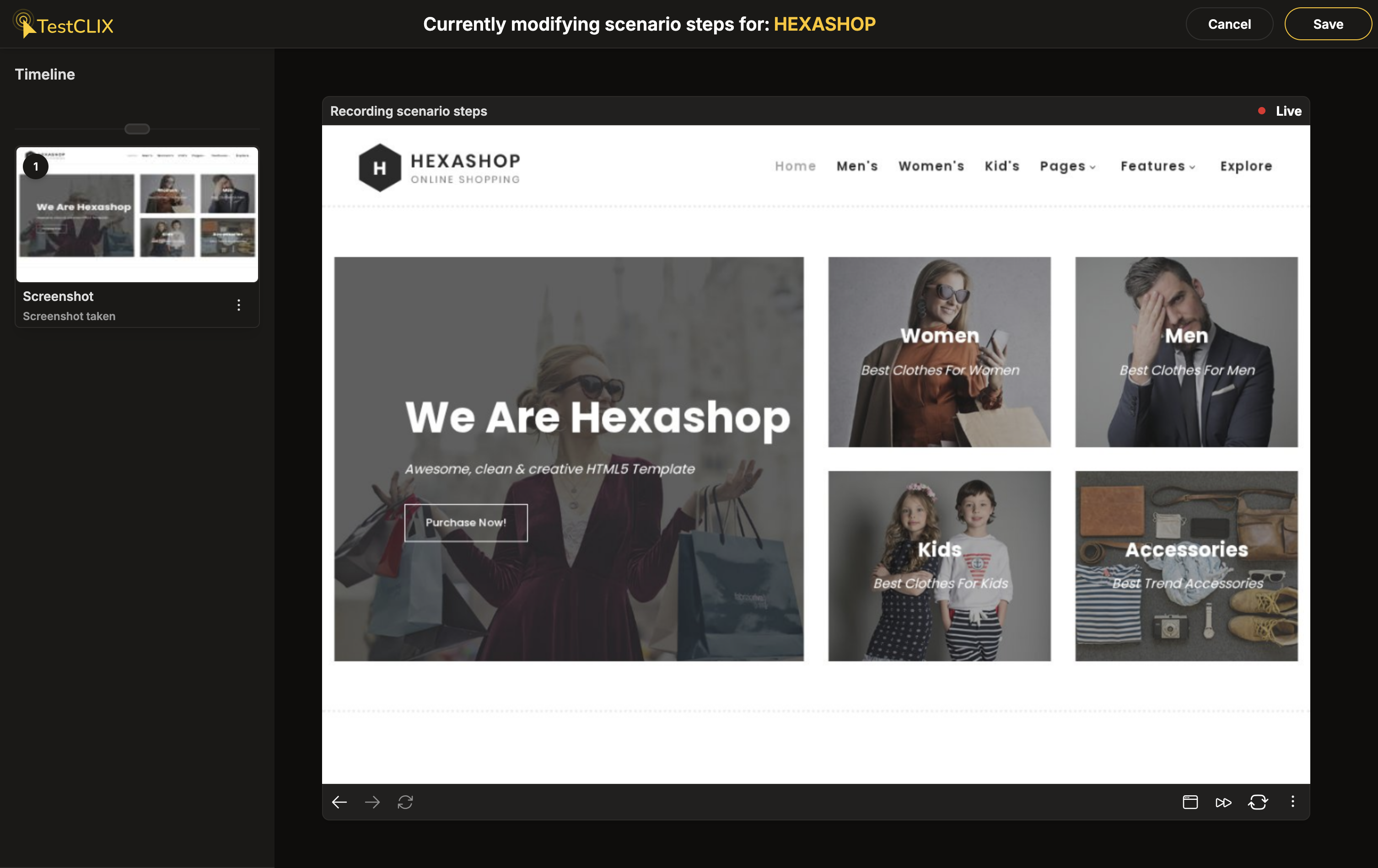
A screenshot step captures the visible state of the page at a specific moment in the scenario. It serves as a reference point - you can see exactly what the page looked like at that step when reviewing the session later.
When combined with Pixel Comparison, screenshots become additional checkpoints. Each screenshot is compared between runs, so you can detect visual changes at key moments in the scenario. If the page contains dynamic content (timestamps, counters, ads), use Ignored Zones to exclude those areas from comparison.
How to add a screenshot
Section titled “How to add a screenshot”- In the recorder, make sure you are in Live mode.
- Right-click anywhere on the recorded browser window. A context menu with available actions will appear.
- Select Take screenshot.
The recorder adds a dedicated screenshot event to the timeline and stores the captured image.
Why a screenshot is added at the end of the session
Section titled “Why a screenshot is added at the end of the session”When you finish recording, TestCLIX automatically adds a screenshot as the last event in the timeline. This is important because of how screenshots work with other actions.
Most screenshots on the timeline are captured before the action they belong to, not after. For example, the screenshot associated with a mouse click is taken before the click happens - it shows the user where they are about to click. The result of that click is visible in the screenshot of the next event.
This works well for all events except the last one. Without a final screenshot, you would not see what happened after the last action. Did the page navigate correctly? Did the confirmation message appear? The automatic screenshot at the end captures that final state so you can confirm the last step was successful.
Best used for
Section titled “Best used for”- Capturing a confirmation screen after a form submission or checkout
- Creating a reference point after a complex interaction
- Adding visual checkpoints at key moments in the scenario
- Preserving the state of a page before navigating away
Caveats
Section titled “Caveats”- A screenshot captures the state visible at that moment only. If the UI is still animating or loading, add a pause before taking the screenshot.
- Screenshots are most valuable at moments where the page state matters - avoid adding them at every step as this slows down the scenario without adding value.
- To verify that a specific region looks the same on every run, use Compare Screen Fragment instead of a plain screenshot.