
Alarm and Notifications
Introduction
Section titled “Introduction”TestCLIX lets you configure Error evaluation and notifications per test. These settings determine both:
- when a test’s status changes to Error
- when notifications are sent
This helps you:
- quickly detect failing tests
- monitor long-term reliability trends
- receive alerts before failures impact users
How It Works
Section titled “How It Works”Each test can have independent error evaluation parameters and notification preferences.
When the number of failed executions reaches your defined threshold, TestCLIX:
- marks the test’s status as Error, and
- sends notifications (if enabled) via your configured channels(for example, email or Slack).
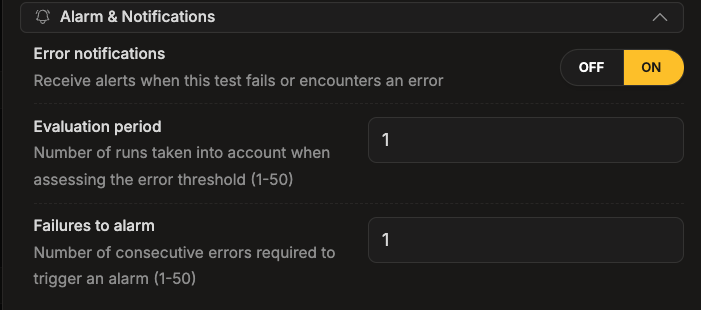
Two main parameters control error evaluation:
-
Evaluation period — defines how many recent executions are taken into account (from 1 to 50 runs).
-
Failures to alarm — defines how many failed runs must occur before triggering a notification (from 1 to 50).
Example
Section titled “Example”If the evaluation period is set to 10 and failures to alarm is 3, an alert will be sent only if 3 errors occur within the last 10 runs.
This approach helps reduce false alarms caused by temporary issues such as network instability or third-party dependencies.
Configuration
Section titled “Configuration”-
Navigate to Workspace using the left sidebar menu.
-
Click the Create button on the right side.
-
Select Website Vitals.
-
Scroll down to the Advanced options section.
-
Expand the Alarm & Notifications subsection.
-
Enable Error notifications.
-
Set the following parameters:
- Evaluation period — number of runs used to assess failure trends (1–50).
- Failures to alarm — number of failures required to mark status as Error and trigger notifications (1–50).
-
Save your configuration.
After saving, TestCLIX will begin evaluating test results and send alerts according to your thresholds.
-
Navigate to Workspace using the left sidebar menu.
-
Locate the test you want to modify.
-
Open the test settings using one of the following methods:
- On the overview page, click the pencil icon next to the Options section.
- On any page, click the three-dot menu and select Edit properties.
-
Scroll down to the Advanced options section.
-
Expand the Alarm & Notifications subsection.
-
Enable Error notifications.
-
Set the following parameters:
- Evaluation period — number of runs used to assess failure trends (1–50).
- Failures to alarm — number of failures required to mark status as Error and trigger notifications (1–50).
-
Save your configuration.
The test’s error status and notifications will update according to the thresholds you define.