

Extra headers
Introduction
Section titled “Introduction”TestCLIX lets you configure custom HTTP headers per test. These headers are attached to every request made by the monitor.
This is useful when you want to:
- identify TestCLIX traffic in your analytics and filter it out from user reports
- allow monitoring traffic through bot protection systems
- pass internal routing or environment flags required by your infrastructure
If you use Cloudflare or a similar solution, see Bot Management Integration.
How It Works
Section titled “How It Works”During test configuration, you can add up to 10 extra headers. Each configured header is sent with HTTP requests generated by the test.
Website Availability behaves like a simple HTTP utility that sends a single request
using the configured HTTP method (GET by default).
Custom headers are sent with the request to the target URL.
If the URL returns a redirect, follow-up requests are also performed as GET.
Header names and values are fully customizable.
Authorization headers are supported and can be used for endpoints that require authentication.
You can also use headers like Accept-Language to test localized responses for different language preferences.
Text and Secret Values
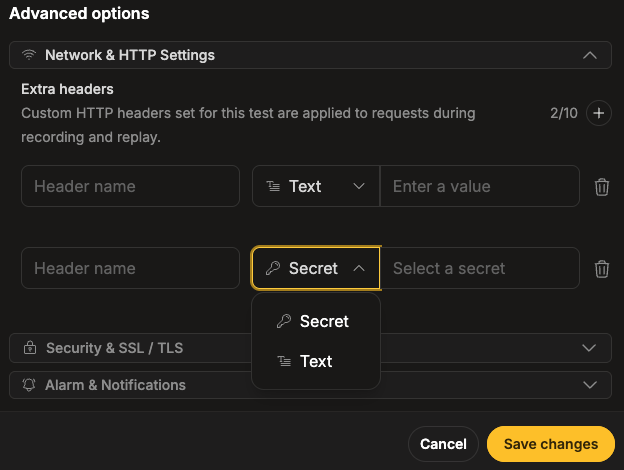
Section titled “Text and Secret Values”Each header value has a source: Text, a value you type in, or Secret, a reference to a stored secret. The source dropdown next to the value offers both, listed as Secret and Text. A new row always starts on Text.
Referencing a stored secret keeps tokens and bot-management values out of the test configuration, and lets you rotate the value in one place instead of editing every test that uses it.
The value you type is sent exactly as you entered it, and it is stored as plain text in the test configuration.
The eye toggle (Hide value) next to the field only hides the value on your screen. It does not encrypt it or turn it into a secret.
A Text value must follow these rules:
- Printable ASCII characters only. Anything else shows the error “Invalid header value”.
- Up to 4096 characters. A longer value shows the error “Max length is …” with the limit.
Secret
Section titled “Secret”You pick a stored secret from a searchable list of the project’s secrets. The row stores a reference to the secret, not its value. The value never passes through the form.
The real value is resolved on the server at run time and attached to the request. It is never shown in the portal, so anyone who can open the test sees only the name of the secret being used.
Before you start, the secret has to exist in the project. See Manage Secrets.
Configuration
Section titled “Configuration”-
Navigate to Workspace using the left sidebar menu.
-
Click the Create button on the right side.
-
Select Website Availability.
-
Scroll down to the Advanced options section.
-
Expand the Network & HTTP Settings subsection.
-
Click the + button next to the Extra headers field to add a new header row.
-
Provide the header name, then set the value’s source to Text or Secret and enter the value or pick the stored secret.
Both can be chosen freely. If you use bot management or firewall rules, values must exactly match your external configuration (for example, in Cloudflare). We recommend using a long, random, and hard-to-guess value.
-
Navigate to Workspace using the left sidebar menu.
-
Locate the test you want to modify.
-
Open the test settings using one of the following methods:
- On the overview page, click the pencil icon next to the Options section.
- On any page, click the three-dot menu and select Edit properties.
-
Scroll down to the Advanced options section.
-
Expand the Network & HTTP Settings subsection.
-
Click the + button next to the Extra headers field to add a new header row.
-
Provide the header name, then set the value’s source to Text or Secret and enter the value or pick the stored secret.
Both can be chosen freely. If you use bot management or firewall rules, values must exactly match your external configuration (for example, in Cloudflare). We recommend using a long, random, and hard-to-guess value.
Switching Between Text and Secret
Section titled “Switching Between Text and Secret”You can change the source of any header row at any time, using the source dropdown:
- Text to Secret - set the source to Secret and pick a stored secret from the list.
- Secret to Text - set the source to Text and type the value. You cannot copy the value out of the secret first, because stored values are never displayed, so you need the value from your own records.
How Headers Appear on the Overview
Section titled “How Headers Appear on the Overview”The test overview page lists the configured extra headers, with an icon and a pill showing which source each one uses:
| Source | What you see |
|---|---|
| Text | A text icon, a Text pill, and the value masked as ••••••••. Use the eye to reveal it. |
| Secret | A key icon, the name of the referenced secret, and a Secret pill. The value is never shown. |
If the referenced secret has been deleted, the row shows “Secret deleted” instead of the secret’s name.
When the Referenced Secret Is Deleted
Section titled “When the Referenced Secret Is Deleted”If the secret a header points at has since been deleted, the picker displays “Secret deleted” in red italic where the secret’s name would normally be, and the error
“Secret no longer exists”
appears beneath it as soon as the dialog opens - you do not have to touch the field to trigger it.
The row is marked invalid and the test cannot be saved until you pick a replacement secret from the list, or switch the source to Text and enter the value.
Existing tests that already reference the deleted secret keep running until they fail, and show a Deleted secret banner on the test details page. For the full recovery steps, see Troubleshooting.
Related
Section titled “Related”Can I see which value a header will actually send?
For a Text header, yes - use the eye toggle in the form or on the test overview page.
For a Secret header, no. The value is resolved on the server at run time and is never shown in the portal. The test configuration shows only the name of the referenced secret.
I hid a Text value with the eye toggle. Is it secret now?
No.
The eye toggle only hides the value on your screen. The value is still stored as plain text in the test configuration. To keep it out of the configuration, store it as a secret and set the header’s source to Secret.
The secret list is empty. What now?
The project has no secrets yet. Add one on the Secrets tab in Settings - see Manage Secrets.
Why does my Text value show “Invalid header value”?
Header values accept printable ASCII characters only. Remove any non-ASCII characters (such as accented letters or emoji) and control characters such as line breaks.
Can the header name reference a secret too?
No. Only the header value can be a secret reference.