

Change a Step's Secret
A recorded Insert secret or OATH step can be repointed at a different stored secret without re-recording it.
This is how you repair a step whose secret was deleted, and how you switch a scenario over to a different account or a rotated key.
Opening the step’s options
Section titled “Opening the step’s options”Selecting a step in the recorder timeline opens its details panel, which has a Details tab and an Options tab. Changing the secret is done on the Options tab.
-
Navigate to Workspace using the left sidebar menu and locate the scenario.
-
Click the three-dot menu and select Modify scenario steps. The scenario opens in the recorder.
-
Select the step you want to change in the timeline.
-
In the details panel, switch to the Options tab.
-
Change the secret as described below, depending on the step type.
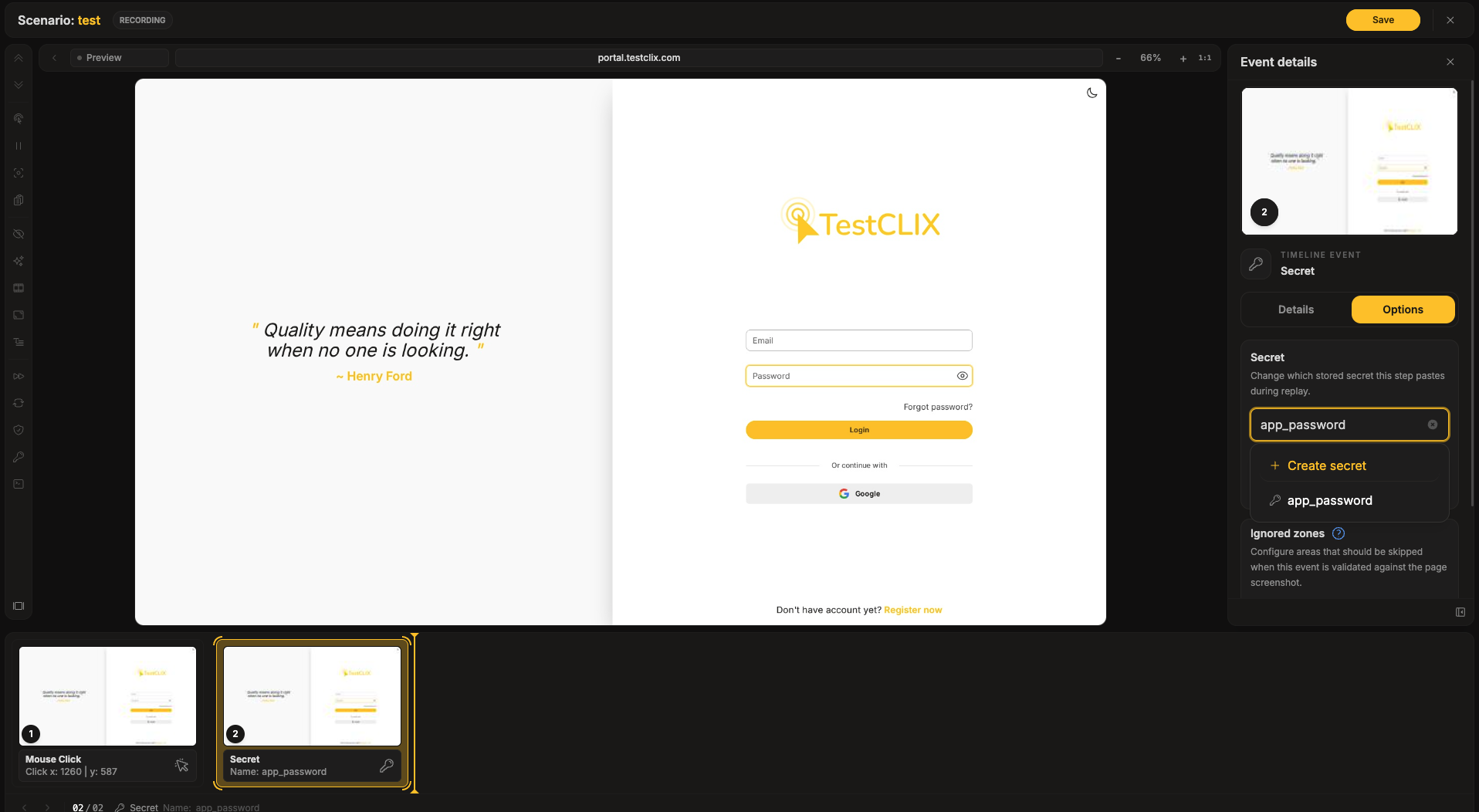
Insert secret steps
Section titled “Insert secret steps”The Options tab shows a Secret section:
“Change which stored secret this step pastes during replay.”
-
Pick the replacement secret from the picker.
-
Click “Save secret”.
The step now references the new secret. Its value is still resolved on the server at run time and is never shown in the recorder.
OATH steps
Section titled “OATH steps”The Options tab shows an OATH secret section, which starts with “Change the key this step authenticates with.” It has the same source dropdown as when adding an OATH step.
-
In the source dropdown, choose one of the following:
- Text - enter the new OATH key. It is masked by default, with a show/hide toggle.
- Secret - pick a stored secret from the picker.
-
Click “Save secret”.
As when adding an OATH step, a key entered as Text is stored with the step, while a stored secret is only referenced. Prefer Secret if you would rather not have the key readable inside the recording, or if the same key is used by more than one scenario.
When Save secret is disabled
Section titled “When Save secret is disabled”“Save secret” stays disabled until you actually change what the step uses - pick a different secret, or enter a different key. If the button will not activate, you have not yet changed anything.
When the step’s secret was deleted
Section titled “When the step’s secret was deleted”If the secret the step used has been deleted, the section shows:
“The secret used by this step was deleted. Pick a replacement.”
Pick another secret and click “Save secret” to repair the step. The step card stops showing “Secret deleted” once it points at an existing secret.