

Insert Secret
Insert secret types the value of a stored secret into the focused field on the recorded page. Use it instead of Text Paste whenever the value is sensitive - a password, an API token, or any credential you do not want written into the scenario.
The value is resolved securely on the server and is never exposed in the recorder. You pick the secret by name; neither you nor anyone replaying the session sees what it contains.
Unlike OATH and extra headers, Insert secret has no Text source - it only works with stored secrets. To type a value that is not sensitive, use Text Paste.
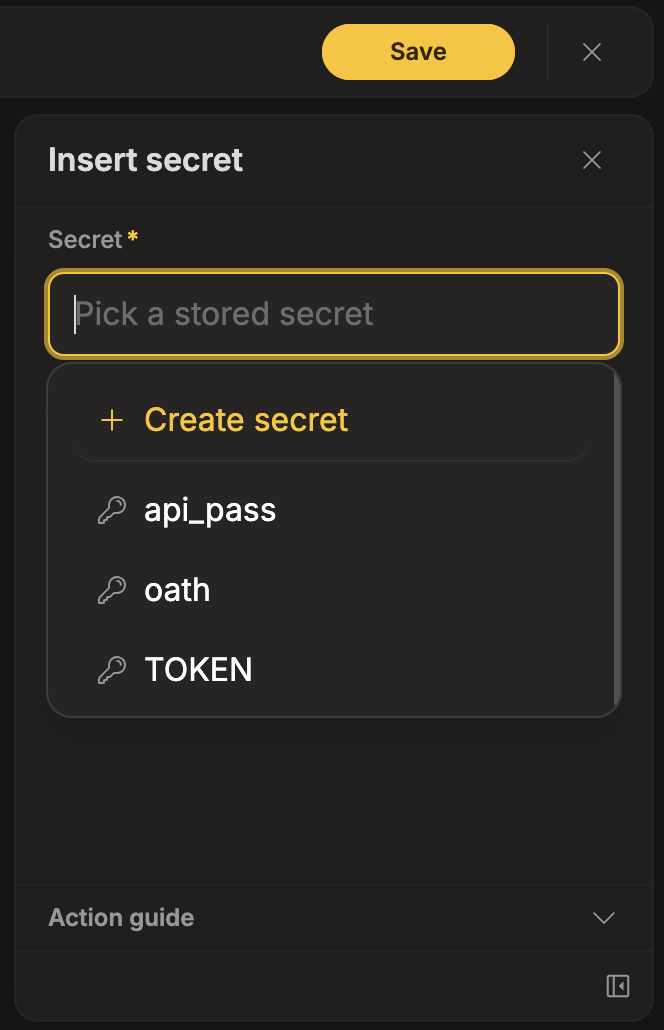
Before you start, the project needs at least one secret - see Secrets. If it has none, you can create one without leaving the recorder.
How to use Insert secret
Section titled “How to use Insert secret”The value is typed into whichever field is currently active on the page. Before adding the step, click on the target field to make sure it has focus.
- In the recorder, make sure you are in Live mode.
- Click on the input field on the page where the value should go.
- Open the Insert secret action from the recorder toolbox.
- Open the Secret field - the placeholder reads “Pick a stored secret” - and pick the secret from the list.
- Click Submit.
The step is added to the timeline showing the name of the secret. During monitoring, TestCLIX resolves the stored value on the server and types it into the field.
When the project has no secrets
Section titled “When the project has no secrets”If the project does not have any secrets yet, the panel shows “No secrets yet”, with the text:
“Insert secret requires a stored secret. Create one here or on the secrets settings page.”
A “Create secret” button takes you straight to the Secrets dialog, so you can add one without abandoning the recording. Creating and editing secrets requires the Editor role or higher - see Roles & Permissions.
Create or manage secrets from the recorder
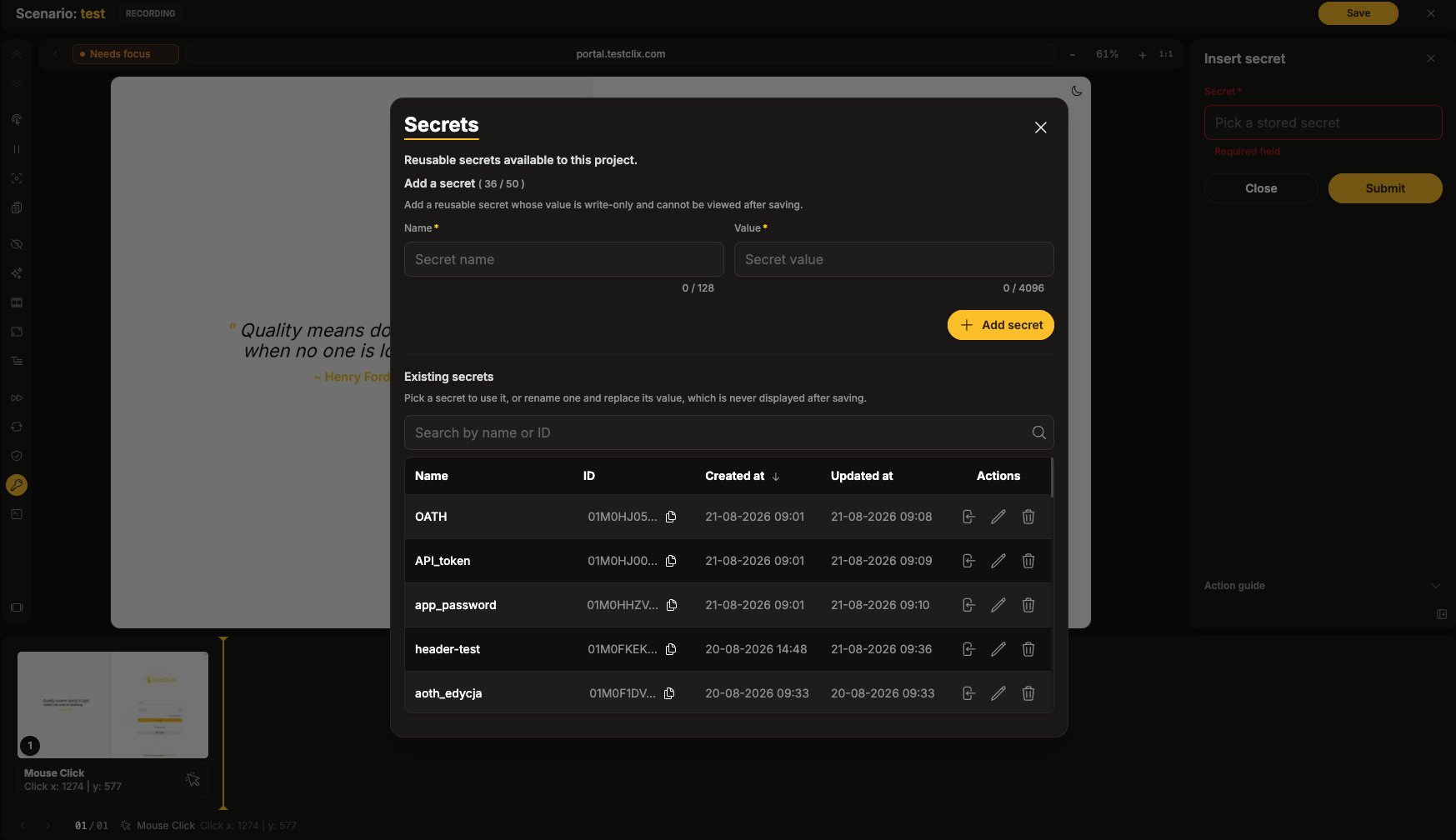
Section titled “Create or manage secrets from the recorder”Pinned to the top of the secret dropdown, above the list of secrets, is a “Create or manage secrets” entry. It opens a Secrets dialog containing the same Add a secret form and Existing secrets table as the Secrets settings tab - search, sortable columns, and per-row actions - so you can do your secret housekeeping without leaving the recorder.
The Existing secrets section summarises what you can do there:
“Pick a secret to use it, or rename one and replace its value, which is never displayed after saving.”
Insert a secret into the step
Section titled “Insert a secret into the step”In the Secrets dialog, each row has an Insert secret action, with the tooltip Insert “<secret name>” into the step.
This is the only action that fills the recorder field. Choosing it inserts the secret into the step being recorded and closes the dialog.
Other row actions
Section titled “Other row actions”Rows also offer Edit secret and Delete secret, subject to your permissions. These behave the same as on the settings tab - see Manage Secrets.
The same “Create secret” entry is available in the OATH picker.
How the step shows its secret
Section titled “How the step shows its secret”Once recorded, an Insert secret step displays the referenced secret’s name as
Name: <secret name> on the step card and in the timeline status bar, rather than a generic label.
That way you can tell at a glance which secret a step uses.
If the secret has since been deleted, the step shows “Secret deleted” in red instead. To repair it, change the secret on the step.
Changing the secret later
Section titled “Changing the secret later”You do not have to re-record a step to point it at a different secret. Select the step in the timeline and use the Options tab of its details panel - see Change a Step’s Secret.
Best used for
Section titled “Best used for”- Typing passwords and API tokens during a recorded login flow
- Any value that would otherwise be stored in plain text inside the scenario
- Values shared by several scenarios, so a rotation only needs one edit
Caveats
Section titled “Caveats”- Make sure the target input field is focused before adding the step. The value is typed into whichever field currently has focus.
- If the field has not appeared yet (for example, after a click that opens a modal), add a pause first.
- If the secret is later deleted, the step becomes invalid - it shows “Secret deleted” in the recorder and is highlighted as broken in the player timeline. See Troubleshooting.
- A project can store up to 50 secrets. If the limit is reached, you cannot create another one from the Secrets dialog until a secret is deleted.