
Slack Integration
Introduction
Section titled “Introduction”Integrating TestCLIX with Slack allows receiving instant notifications in the Slack workspace whenever any tests fail. It ensures immediate awareness of any issues, reducing response times and improving visibility.
What You Get
Section titled “What You Get”- Real-time alerts on the chosen Slack channel.
- Notifications triggered for any failed test (works for all types of tests).
- Clean channel history - notifications are only sent on failure.
Connecting to Slack
Section titled “Connecting to Slack”The Slack integration can be connected and managed directly from the application Settings. Configuring it requires the Admin or Owner role in the current project - see Roles & Permissions.
-
Open Settings from the left sidebar menu.
-
Select the Integrations tab.
-
If Slack is not connected, a Connect to slack button is displayed. Click it to start the process.

-
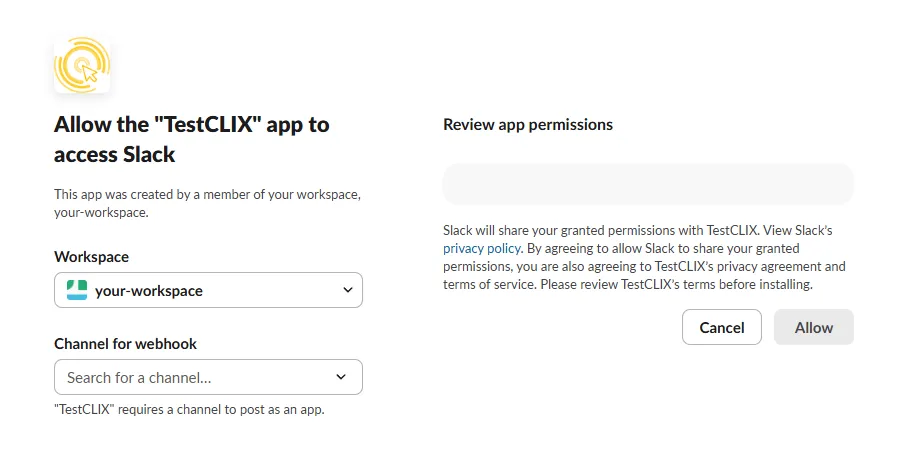
The authorization process redirects to the Slack page. Here, choose a Channel for webhook where the error notifications will be posted. The workspace is selected automatically by default, but it can be changed if needed.
-
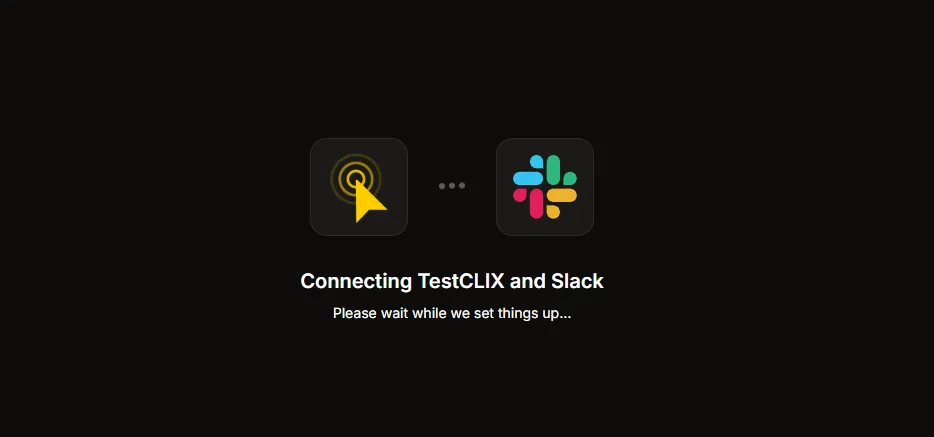
Confirm the selection by clicking Allow. The process then redirects back to the TestCLIX application.
-
If the entire process is successful, a success message is displayed, and the Slack integration panel shows a Connected status.

Managing the Integration
Section titled “Managing the Integration”Once connected, details of the Slack integration can be viewed and managed in the Integrations tab.
Integration Details
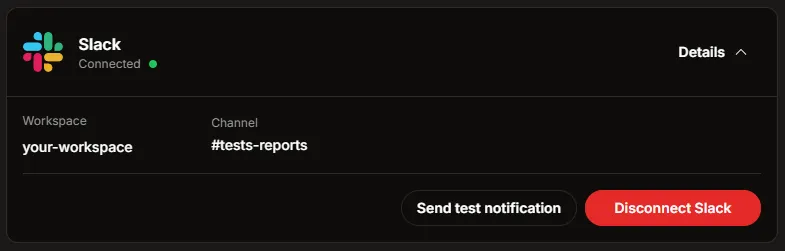
Section titled “Integration Details”Expand the Slack integration panel to view specific details about the connection. It will display:
- The workspace the account is connected to.
- The channel assigned to receive notifications.
Testing the Connection
Section titled “Testing the Connection”To ensure the integration is working correctly, a test notification can be triggered manually.
- In the Slack integration details, click the Send test notification button.
- Check the selected Slack channel. A test message confirming the connection should be received.
Disconnecting Slack
Section titled “Disconnecting Slack”If Slack notifications are no longer needed, the integration can be safely removed at any time.
- Open the Slack integration details in the Integrations tab.
- Click the Disconnect Slack button.
- Once disconnected, all messages and notifications to Slack will immediately stop.