

Roles & Permissions
Introduction
Section titled “Introduction”Permissions in TestCLIX are assigned per project.
A user can have varying access levels depending on the project.
Each project member has:
- One primary role: Owner, Admin, Editor, Viewer, or Accountant
- Optional additional permission - Billing
This guide explains:
- What each role can see and do
- How permissions work
- How to check your permissions
To invite teammates or update their permissions, see Users & Invitations.
Quick Access Overview
Section titled “Quick Access Overview”| I want to… | Required role |
|---|---|
| View tests and results | Viewer |
| Replay sessions in Session Player | Viewer |
| Create or edit tests | Editor |
| Run tests | Editor |
| Add, edit or delete Secrets | Editor |
| Modify tests from Session Player | Editor |
| Manage users | Admin |
| Configure integrations | Admin |
| Access billing and invoices | Accountant or Billing-enabled |
| Full project control | Owner |
Where to See Your Own Permissions
Section titled “Where to See Your Own Permissions”You can check your permissions in the current project from the following locations:
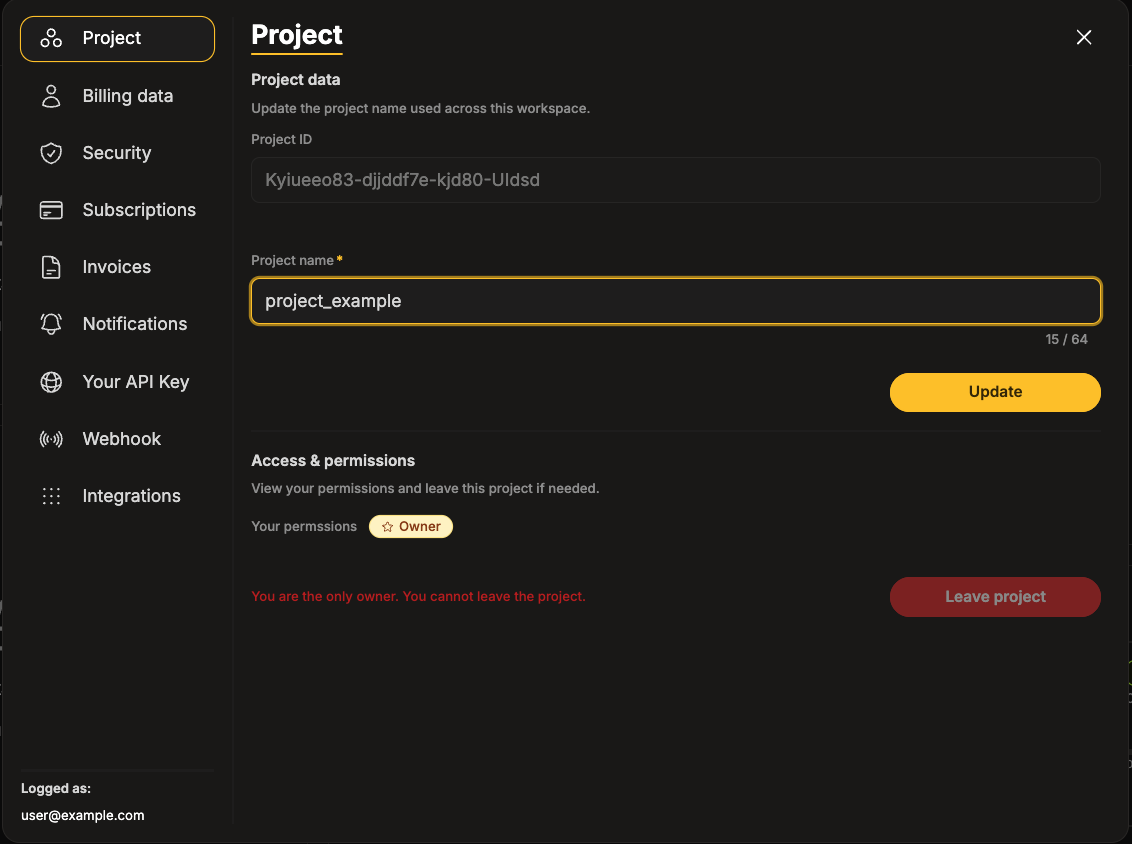
-
Open Settings from the left sidebar menu.
-
Go to the Project tab.
-
In the Access & permissions section, find Your permissions.
-
Your role is shown as a badge.
-
From here, you can also Leave project (unless you are the only Owner).
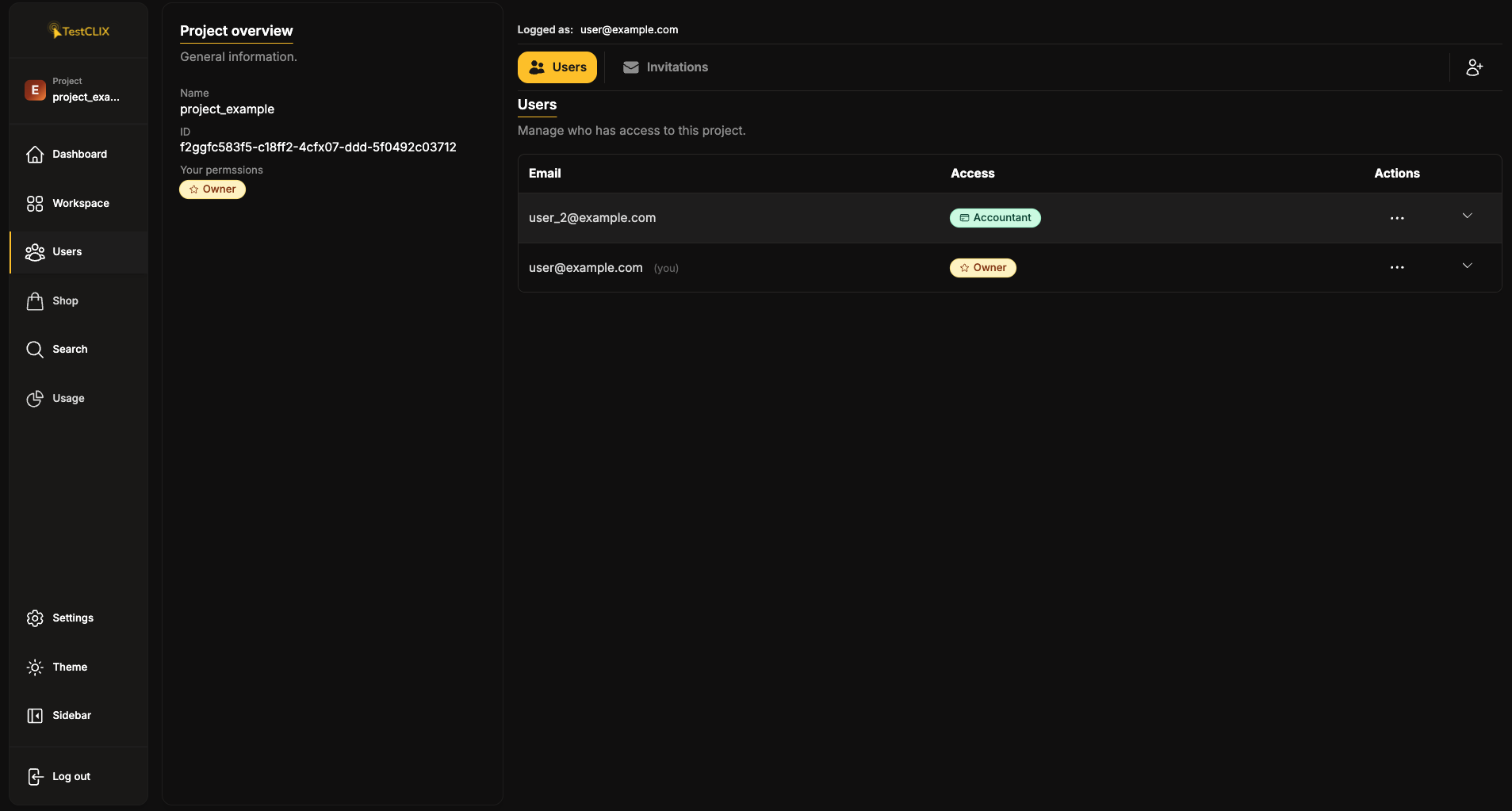
-
Open Users from the left sidebar menu.
-
Under Project overview, find Your permissions.
-
Your role is shown as a badge.
-
Hover the badge for a short description of that role.
-
If you also have Billing permission, a separate badge may appear.
Permission Matrix
Section titled “Permission Matrix”| Action | Owner | Admin | Editor | Viewer | Accountant |
|---|---|---|---|---|---|
| View tests & workspace | ✓ | ✓ | ✓ | ✓ | ✗ |
| View dashboards & history | ✓ | ✓ | ✓ | ✓ | ✗ |
| Replay in Session Player | ✓ | ✓ | ✓ | ✓ | ✗ |
| View Secrets (names only) | ✓ | ✓ | ✓ | ✓ | ✗ |
| Create & edit tests | ✓ | ✓ | ✓ | ✗ | ✗ |
| Delete tests & directories | ✓ | ✓ | ✓ | ✗ | ✗ |
| Manage Secrets | ✓ | ✓ | ✓ | ✗ | ✗ |
| Run tests (Execute) | ✓ | ✓ | ✓ | ✗ | ✗ |
| Manage users | ✓ | ✓ | ✗ | ✗ | ✗ |
| Send invitations | ✓ | ✓ | ✗ | ✗ | ✗ |
| Configure integrations | ✓ | ✓ | ✗ | ✗ | ✗ |
| Rename the project | ✓ | ✗ | ✗ | ✗ | ✗ |
| Billing & invoices | ✓ | Optional* | Optional* | Optional* | ✓ |
* Billing is an additional permission that can be granted to Admin, Editor, or Viewer.
Project Roles
Section titled “Project Roles”Each project member has a primary role that defines what they can access and manage in that project.
Full access to the project, including workspace, integrations, users, and billing.
Can:
- Create, edit, run, and delete tests and directories
- Use Session Player to replay and compare test sessions
- Manage users and permissions
- Configure integrations and project settings
- Access billing, invoices, subscriptions, and shop purchases
- Promote other users to Owner
Restrictions:
- An Owner can change or remove their own Owner role only if there is at least one more Owner in the project
Manages the project, users, and integrations.
Can:
- Create, edit, run, and delete tests and directories
- Use Session Player to replay and compare test sessions
- Invite users and manage permissions
- Configure integrations (Jira, Slack, webhooks, API)
- View integration logs
- Manage project settings
Cannot:
- Assign the Owner role
- Remove another Admin or an Owner from the project
- Rename the project (Owner only)
- Manage billing unless Billing permission is granted
Editor
Section titled “Editor”Works with tests and scenarios but cannot manage users or project-level settings.
Can:
- Create, edit, and delete tests and directories
- Record and modify scenario steps
- Run tests (Execute)
- Use Session Player to replay and compare test sessions
- Mark test errors as acknowledged
Cannot:
- Manage users
- Change settings other than personal
Viewer
Section titled “Viewer”Read-only access to the workspace and project results.
Can:
- Browse directories and tests
- View history, statistics, dashboards, and search
Can also:
- Replay sessions in Session Player (without actions that modify the test)
Cannot:
- Create or edit tests
- Run tests
- Manage users
- Change settings other than personal
Accountant
Section titled “Accountant”Billing-focused role without access to the test workspace.
Can:
- View invoices
- Manage billing settings
- Manage subscriptions
- Use the shop and purchases
Cannot:
- Access the workspace
- View or edit tests
- Manage users
How Blocked Actions Work
Section titled “How Blocked Actions Work”Some features may remain visible even if you do not have permission to use them.
Blocked actions:
- Appear grayed out
- Show a lock icon
- Cannot be clicked
- Display a tooltip on hover:
“You don’t have permission. Contact your Admin.”
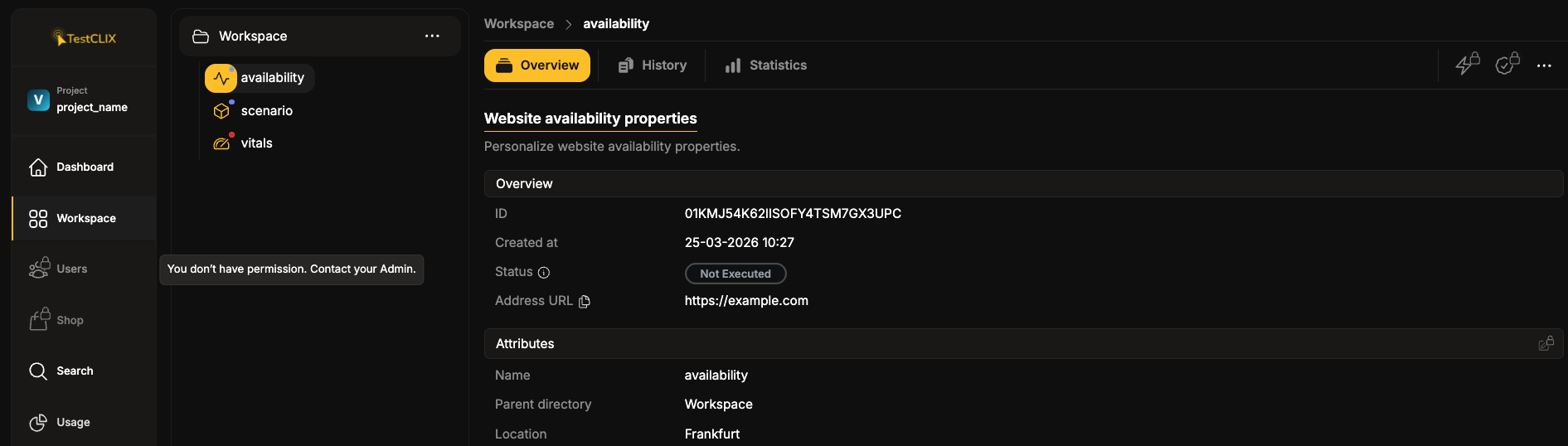
Actions remain visible so you know the feature exists and may require a higher role.
If you need additional access, contact your project Owner or Admin.
Access to Main Sections
Section titled “Access to Main Sections”| Section | Who can access |
|---|---|
| Dashboard | All signed-in project members |
| Workspace | Viewer and above |
| Search | Viewer and above |
| Users (team management) | Admin and Owner |
| Shop | Accountant and Owner (or anyone with Billing enabled) |
| Settings | Depends on the tab (see below) |
Settings Tabs
Section titled “Settings Tabs”| Tab | Who can access |
|---|---|
| Project, Security | Everyone |
| Secrets | Viewer and above - adding, renaming, and deleting require Editor or higher |
| Billing data, Subscriptions, Invoices | Accountant and Owner (or Billing-enabled users) |
| Notifications, Your API Key, Webhook, Integrations | Admin and Owner |
All of these settings apply to the currently selected project. For configuration details, see the integration guides: API, Webhooks, Emails, Slack, Telegram, and Jira, and for stored values see Secrets.
The Secrets tab is available from the Viewer role upwards. Viewers can open it and see the names of stored secrets, but adding, renaming, and deleting require the Editor role or higher - for a Viewer those controls are locked in the usual way described in How Blocked Actions Work.
Managing Team Access
Section titled “Managing Team Access”Inviting teammates, managing pending invitations, and editing or removing project members are covered in:
Why can I see a test but not run it?
You most likely have the Viewer role.
Running tests requires Editor or higher.
Why are some actions inside Session Player locked?
Replaying sessions is available from the Viewer role, but actions that modify the test - such as Combine screens or Modify scenario steps - require Editor or higher.
Ask your project Owner or Admin to change your role.
Why can’t I open the Users page?
Managing users requires Admin or Owner permissions.
You can still view your own role in:
- Settings → Project
- Users → Project overview (if visible)
Why can’t I see the Shop as an Admin?
Billing is a separate permission.
Ask your project Owner to enable Billing for your account.
Why can’t I assign the Owner role?
Only an existing Owner can promote another user to Owner.
Who can change my permissions?
Your project Owner or Admin.
If you are Owner or Admin go to:
Users → Actions → Edit
Do permissions apply across all projects?
No.
Permissions are assigned per project, so your role may change after switching projects.