
Compare Screen Fragment
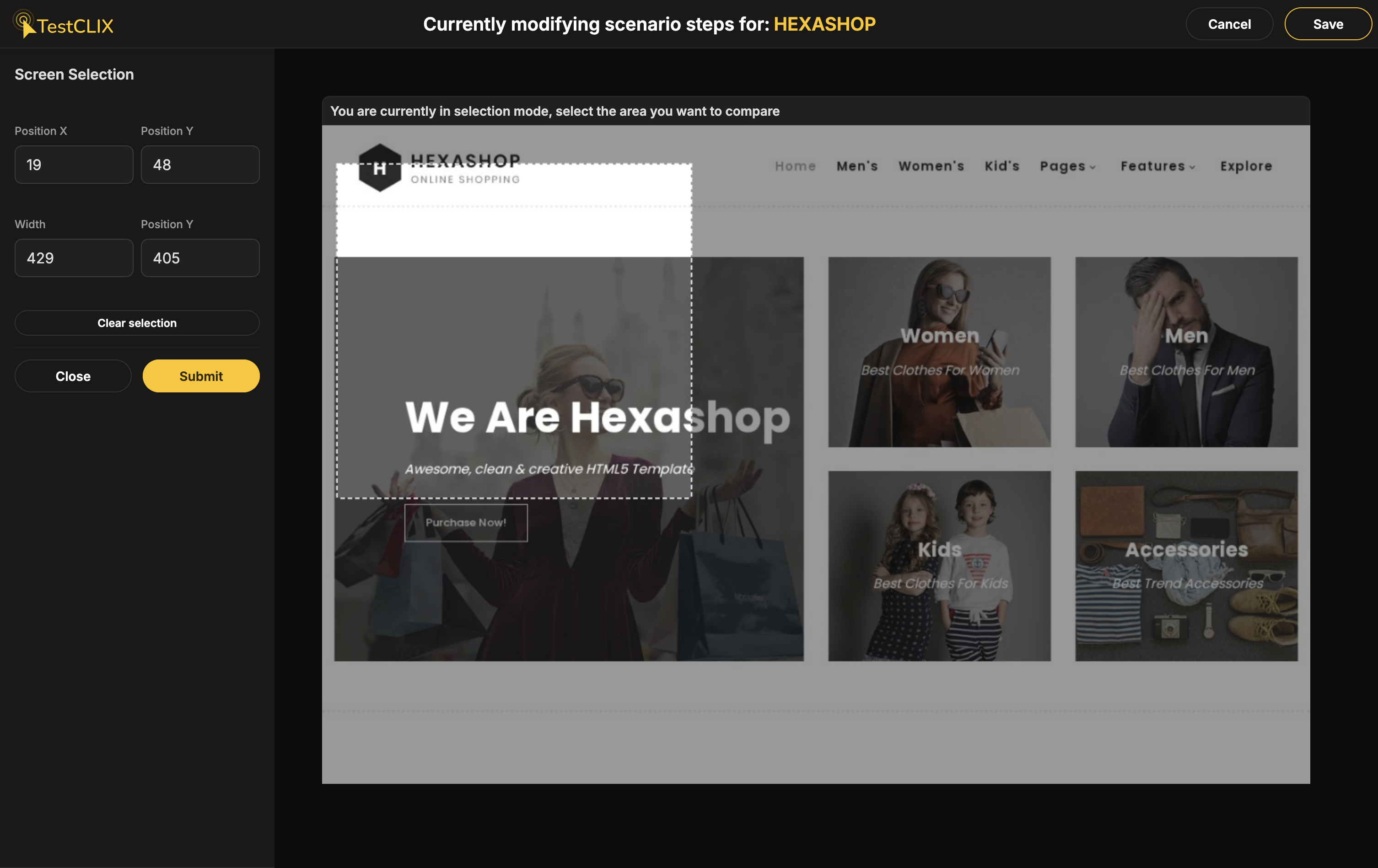
Compare Screen Fragment is one of the most useful verification steps you can add to a scenario. It lets you select a part of the screen and check that it looks the same every time the test runs. This is your first line of defence to ensure the user sees what they are supposed to see.
It is a lightweight alternative to full Pixel Comparison. Instead of comparing the entire page, you pick only the fragments that matter - a logo, a navigation bar, a price tag, or any other visual element. This makes the check faster, more focused, and less likely to break because of unrelated changes elsewhere on the page.
How to add a screen fragment check
Section titled “How to add a screen fragment check”- In the recorder, make sure you are in Live mode.
- Right-click anywhere on the recorded browser window. A context menu with available actions will appear.
- Select Compare screen fragment.
- Draw a rectangle around the region you want to verify.
- Click Submit to confirm the selection.
The recorder captures a screenshot of the selected region and stores it as a reference in the timeline. During monitoring, TestCLIX captures the same region and compares it against the stored reference.
How comparison works
Section titled “How comparison works”The comparison uses structural similarity (SSIM) rather than strict pixel-by-pixel matching. This means minor variations caused by font rendering or image compression are tolerated, but meaningful visual changes - such as a missing logo, a broken layout, or a wrong colour - are detected.
If the current screen does not match the stored reference, the step fails.
Best used for
Section titled “Best used for”- Logos, icons, and branding elements that should never change
- Navigation bars and menu structures
- Price displays, product images, or key visual indicators
- Any region where a visual change would mean something is wrong
Updating the reference
Section titled “Updating the reference”You can adjust the position and size of the checked region by updating the event in Preview mode. This changes the coordinates but does not re-capture the reference screenshot.
To update the reference image itself (e.g., after a redesign), regenerate the timeline. This re-runs the scenario and captures fresh screenshots for every step.
Related features
Section titled “Related features”Common errors
Section titled “Common errors”| Error | Meaning | What to do |
|---|---|---|
| The image check failed | The screen region does not match the stored reference. | Check if the visual change is expected. Re-record or regenerate if the page has been updated. |
| Invalid image checker coordinates | The selected region extends beyond the browser window. | Resize the region so it fits within the screen boundaries. |
Caveats
Section titled “Caveats”- Choose a region that contains stable content. Avoid including areas with animations or dynamic ads.
- If the page layout shifts between recording and monitoring, the captured region may no longer cover the intended content. Re-record the check if the layout changes.