
Statuses
Introduction
Section titled “Introduction”Website Availability statuses help you quickly understand the current state of a Website Availability check.
Website Availability statuses
Section titled “Website Availability statuses”| Status | Description |
|---|---|
| Not executed | The availability check has been configured but not executed, and no results exist yet. |
| Valid | The availability check configuration is valid and ready, but the scheduler is not set. |
| Queued | Manual execution has been triggered. The availability check is queued until the current check completes. |
| Pass | The availability check executed successfully. The website is reachable and responding as expected. |
| Error | The availability check failed due to an issue such as a timeout, DNS resolution problem, or unexpected HTTP response. The website may be unavailable or unreachable. |
| Acknowledged | The availability check failed, but the issue has been acknowledged. |
Where statuses appear
Section titled “Where statuses appear”Website Availability statuses are visible in several places in TestCLIX:
-
Workspace – in the workspace tree, each availability check displays a colored status indicator (dot) showing its current state. In workspace grid and table views, the current status is displayed as a status badge, such as Pass, Error, or Acknowledged.
-
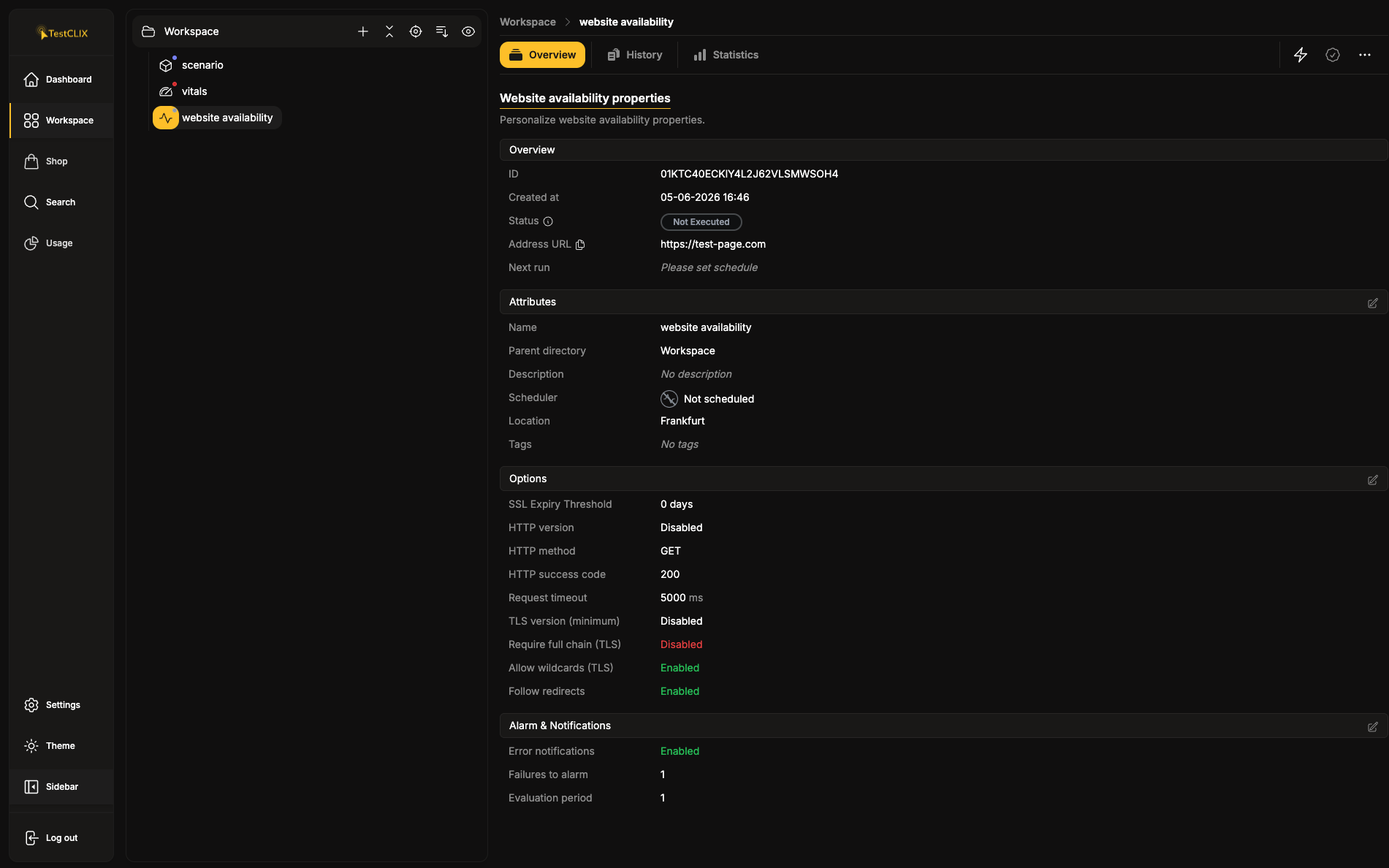
Website Availability overview – the Overview tab displays the current availability status together with execution and evaluation details.
-
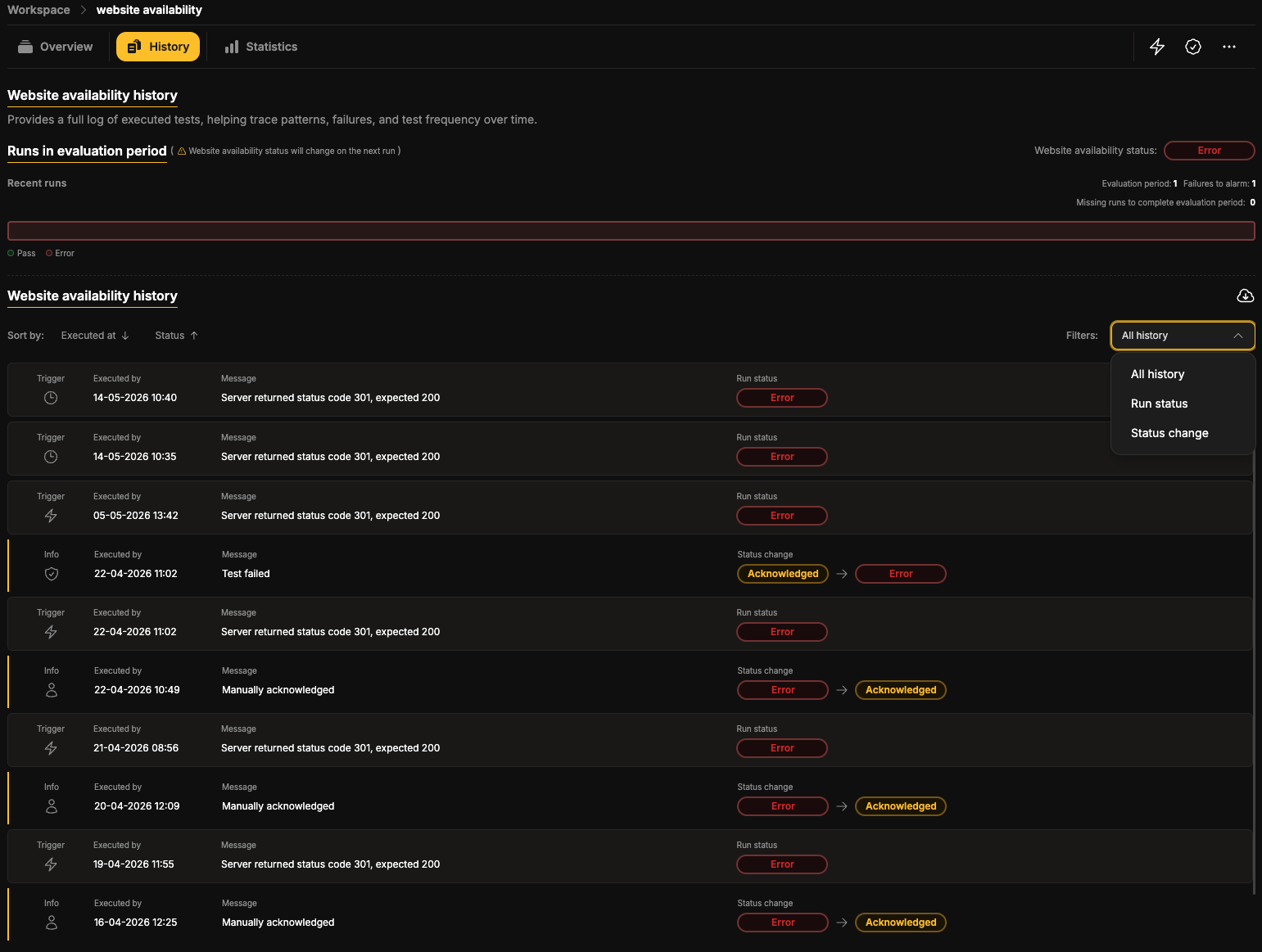
History – the History tab shows how the availability check status changed over time and how individual run affected it.
History
Section titled “History”The History tab combines two types of information:
- Run history – individual availability check executions.
- Status changes – transitions between availability statuses.
This helps track both execution failures and the resulting status updates.
Runs in evaluation period
Section titled “Runs in evaluation period”The Runs in evaluation period section displays Website Availability executions included in the current evaluation window.
It also shows:
- Website Availability status – the current overall Website Availability state.
- Evaluation period – the number of recent runs (1–50) taken into account when evaluating the status.
- Failures to alarm – the number of failed runs required before the Website Availability enters the Error status.
When the configured failure threshold is reached, TestCLIX changes the test status to Error.

For more information, see Alarm and Notifications.
Run status
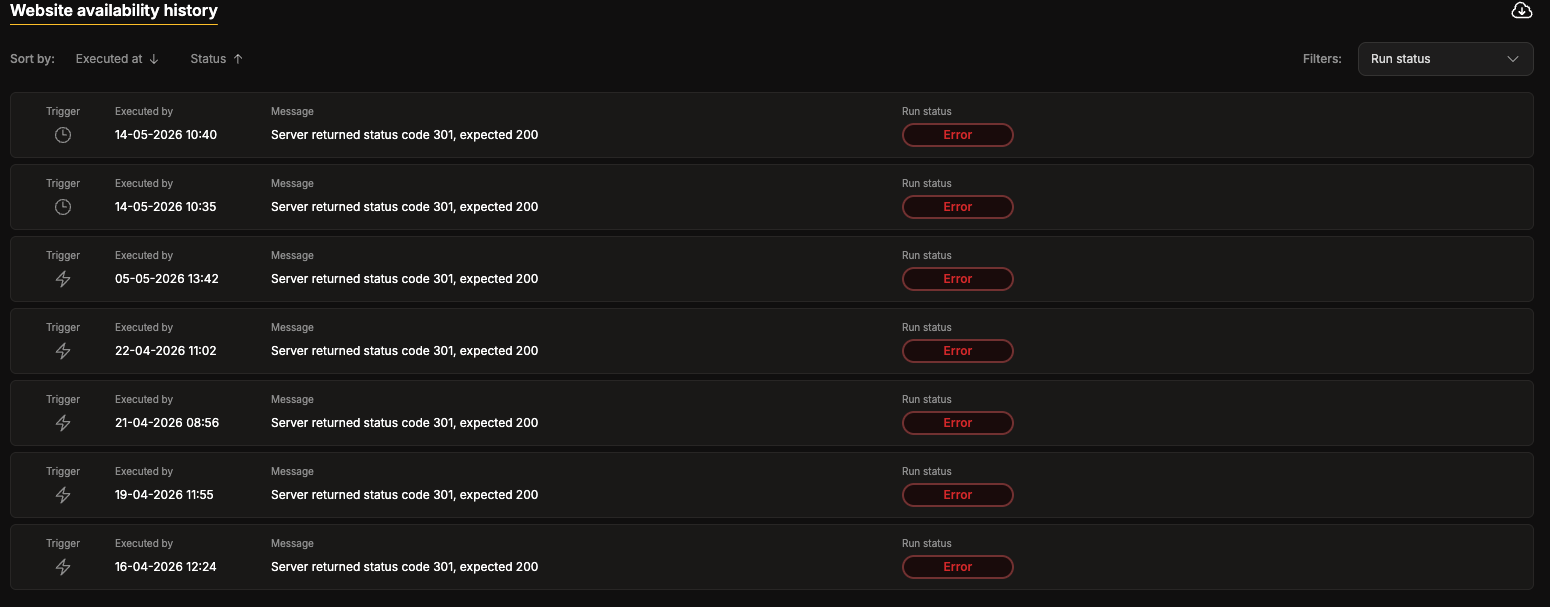
Section titled “Run status”Run status represents the result of a single availability check execution. This is the default filter in the Website Availability history section.
Each run entry includes:
- Trigger – how the run started
- Executed at – execution timestamp
- Message – execution details or failure reason
- Run status – execution result, such as Error or Pass
Trigger types
Section titled “Trigger types”| Trigger | Description |
|---|---|
 | Started manually by a user. |
 | Started automatically by the configured scheduler at a defined interval or time. |
 | Started automatically by TestCLIX as part of an internal system action, such as thumbnail generation or other background processing. |
Status change
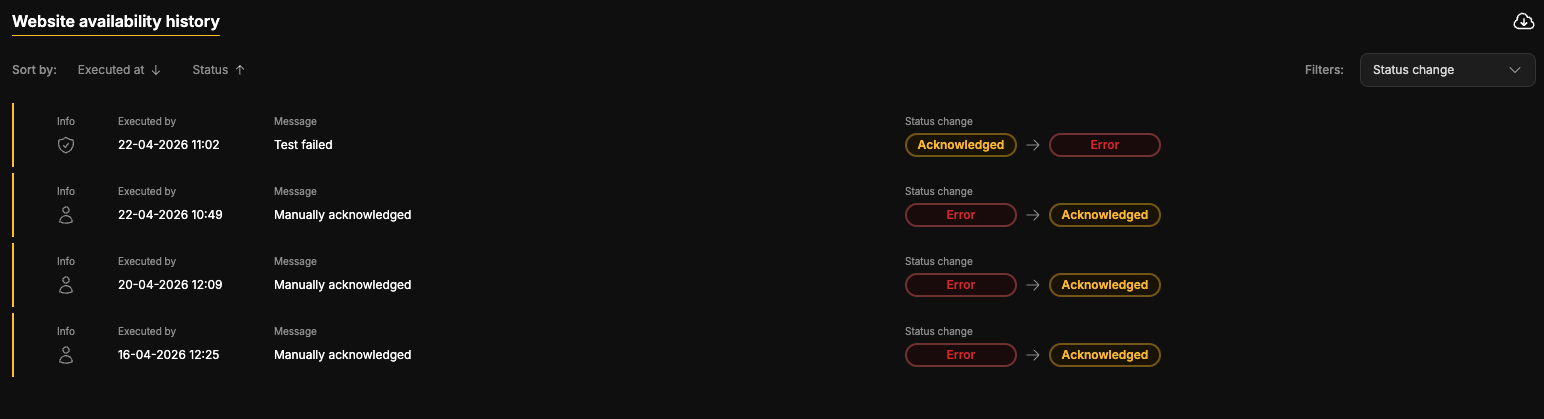
Section titled “Status change”Status changes describe transitions between availability states. This is another filter in Website Availability history.
Examples:
- Error → Acknowledged
- Acknowledged → Error
- Error → Pass
Each record contains:
- Info – additional context
- Executed at – when the change happened
- Message – transition reason
- Status change – previous and current status
Common messages include:
- Manually acknowledged
- Test recovered
- Test failed
Manual acknowledgement
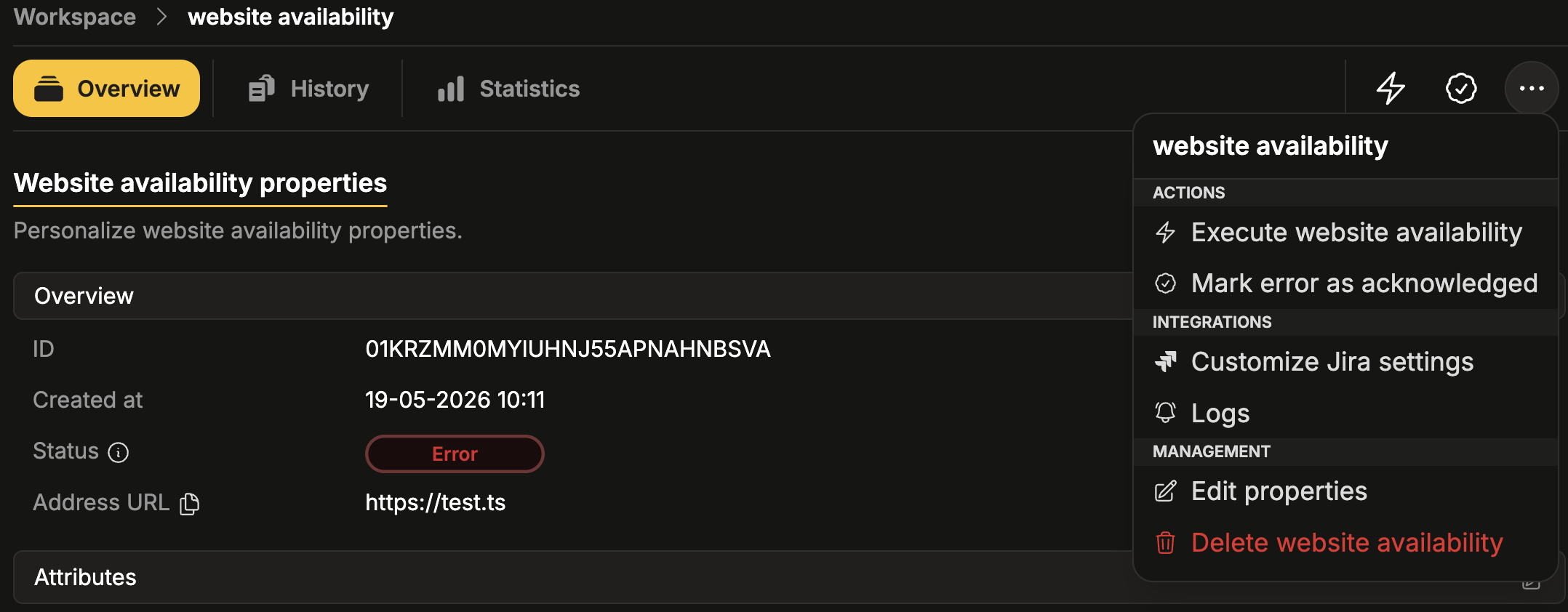
Section titled “Manual acknowledgement”When an Website Availability check enters the Error status, you can acknowledge the error to indicate that the issue is known and is being handled.
-
Locate the Website Availability you want to update.
-
Open the three-dot menu.
-
Select Mark error as acknowledged.
-
Open the scenario details page.
-
In the top action panel, click the Mark error as acknowledged icon.

The acknowledgement is recorded in History as a status change entry with the message Manually acknowledged.
If a later run succeeds, TestCLIX automatically updates the scenario status and adds an entry such as Test recovered.