
Audit SSL
Introduction
Section titled “Introduction”One of the most problematic aspects of website maintenance is managing SSL certificates. Because certificates usually have a long validity period, they are easy to forget about and often expire unnoticed. While some teams configure automatic renewal mechanisms, there is no absolute guarantee that these mechanisms will always work as expected.
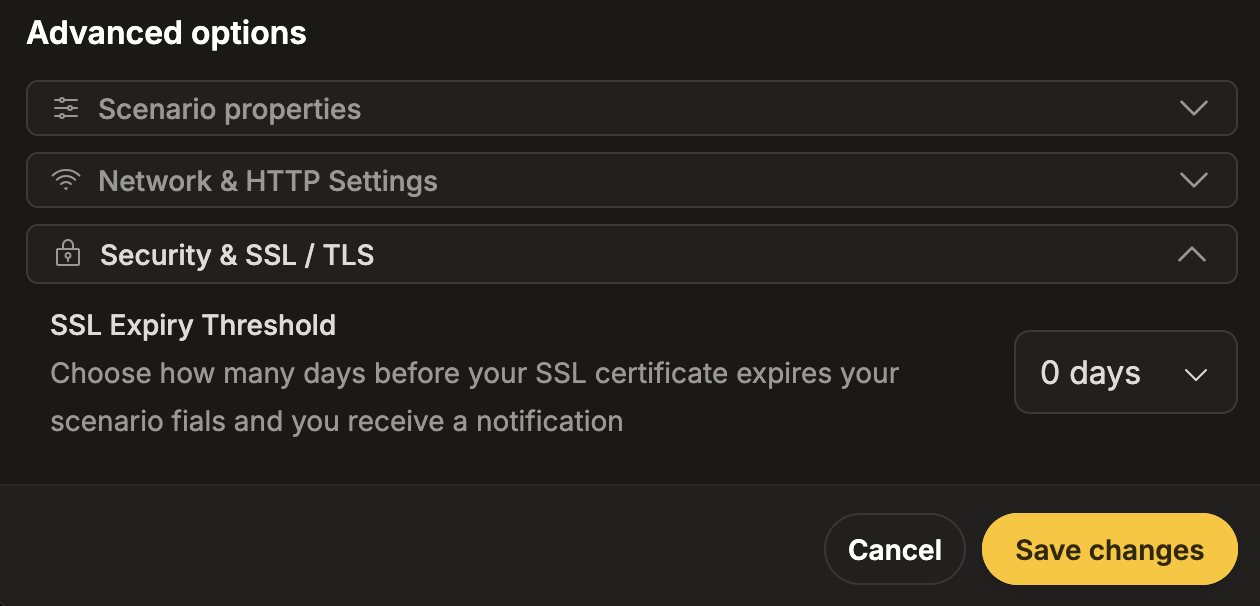
In Website Scenario, the SSL Expiry Threshold allows you to monitor certificate expiration dates. When a certificate is approaching its expiry, the test is marked as failed, giving you time to renew before it becomes invalid.
How It Works
Section titled “How It Works”You can configure a threshold that defines when the test starts failing. The available options are:
- 0 days
- 7 days
- 14 days
- 21 days
The selected value defines the minimum number of days remaining before the certificate expires.
When the value is greater than 0 days, the test is marked as Error if the remaining validity period is lower than the configured threshold.
When the value is set to 0 days, certificate expiration is not monitored. The test is marked as Error only when the certificate expires and becomes invalid.
SSL certificates are validated not only for the main website but also for all resources required by the scenario. As the scenario executes its steps and downloads resources from subdomains or external domains, certificates for all those resources are verified as well.
This approach helps detect issues that were previously difficult to catch or that could go unnoticed for months, such as expired certificates on external dependencies.
Configuration
Section titled “Configuration”-
Navigate to Workspace using the left sidebar menu.
-
Click the Create button on the right side.
-
Select Web Scenario.
-
Scroll down to the Advanced options section.
-
Expand the Security & SSL / TLS subsection.
-
Set the SSL Expiry Threshold field to choose the certificate expiration threshold.
-
Navigate to Workspace using the left sidebar menu.
-
Locate the test you want to modify.
-
Open the test settings using one of the following methods:
- On the overview page, click the pencil icon next to the Options section.
- On any page, click the three-dot menu and select Edit scenario properties.
-
Scroll down to the Advanced options section.
-
Expand the Security & SSL / TLS subsection.
-
Update the SSL Expiry Threshold field to change the certificate expiration threshold.
Reporting
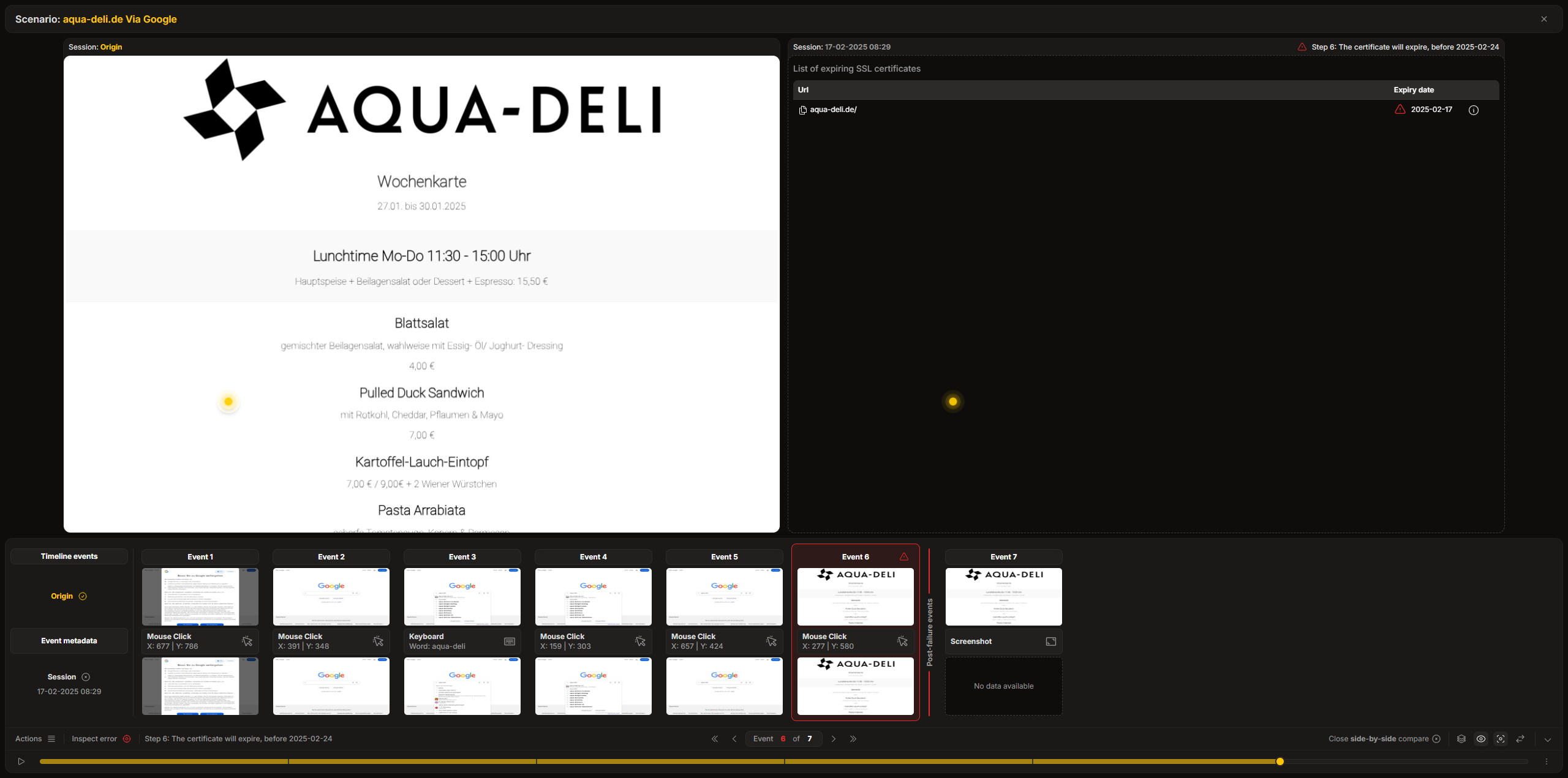
Section titled “Reporting”When an SSL certificate issue is detected, you can view the details in the Session Player.
-
Navigate to Workspace using the left sidebar menu.
-
Locate the test with the SSL error.
-
Open the Session Player using one of the following methods:
- Click the test thumbnail.
- Click the three-dot menu and select View latest session.
-
In the Session Player, navigate to the event marked with an error to view the SSL certificate details.
-
On the right side of the session view, you will see a list of all invalid SSL certificates.
Hands-on
Section titled “Hands-on”Sometimes seeing something is more important than reading. We invite you to watch a step-by-step introductory video that highlights this feature: