
Audit HTTP
Introduction
Section titled “Introduction”The Audit HTTP options in Website Availability control how TestCLIX performs HTTP checks and how it decides whether a response is successful.
These options are useful when you need strict validation for response codes, protocol behavior, redirects, request method, or request metadata.
How It Works
Section titled “How It Works”HTTP method
Section titled “HTTP method”Defines which HTTP method is used for the request.
The supported options are GET, HEAD, and OPTIONS. If this field is not set, TestCLIX uses GET by default,
which is the most common choice for availability checks.
Other methods such as POST, PATCH, and DELETE are currently not available due to security
restrictions. If your use case requires one of these methods, please contact support to discuss it.
Request timeout
Section titled “Request timeout”Defines the request timeout in milliseconds.
If this field is not set, the default timeout is 5000 ms.
The same timeout value is applied to:
- connection establishment
- waiting for the server response (read)
This means the test fails if either phase exceeds the configured limit. Typical error messages are:
- Failed to connect within TIMEOUT_MS ms
- Server did not respond within TIMEOUT_MS ms
Use lower values for strict uptime/SLA checks and higher values for slower endpoints, regional latency, or APIs that do heavier server-side processing.
HTTP success code
Section titled “HTTP success code”Defines the expected HTTP status code for a successful check.
If this field is not set, the default expected code is 200.
In HTTP, 200 usually means the request was successful (OK), so this is the
most common value for standard website availability checks.
The check uses exact matching. For example, if the expected code is 204
and the server returns 200, the test fails.
Use a different expected code only when your endpoint is designed to return it. Common examples:
200= OK (standard page/API success)201= Created (common after successful create operations)204= No Content (success with empty response body)301or302= Redirect responses
Reference: MDN HTTP response status codes
HTTP version
Section titled “HTTP version”Defines which HTTP protocol version should be used.
Supported values are:
disabled(auto-detect)HTTP/1.1HTTP/2HTTP/3
If this field is not set (or set to disabled), version selection is automatic.
In this mode, TestClix lets the client/server negotiate the best available version.
Version overview:
HTTP/1.1- Older and very widely supported.
- Good baseline for compatibility with legacy systems and proxies.
HTTP/2- Newer than HTTP/1.1 and widely used on modern websites.
- Usually better performance than HTTP/1.1 because it can handle multiple requests more efficiently.
HTTP/3- Newest major HTTP version.
- Adoption is growing, but support can still vary by infrastructure, CDN, network path, and server setup.
Practical guidance:
- Use
disabledif you want a general availability check. - Pin a specific version only if you need to enforce a protocol requirement (for example, validating HTTP/2-only behavior).
Follow redirects
Section titled “Follow redirects”Defines whether HTTP redirects should be followed.
If this field is not set, redirects are followed by default.
When disabled, redirect responses (for example 301 or 302) are evaluated directly
against the configured HTTP success code.
Why disable redirects:
- To verify that a specific URL returns a redirect intentionally (for example,
301during a domain migration). - To catch unexpected redirects caused by misconfiguration, expired routing rules, or wrong environment settings.
- To validate canonicalization behavior (for example,
httptohttps,wwwto non-www) as a separate check. - To detect unnecessary redirects that can indicate application routing problems, slower page load, and potential negative SEO impact.
Example:
- If redirects are disabled and HTTP success code is
302, the test passes only when the endpoint returns302directly.
Configuration
Section titled “Configuration”-
Navigate to Workspace using the left sidebar menu.
-
Click the Create button on the right side.
-
Select Website Availability.
-
Scroll down to the Advanced options section.
-
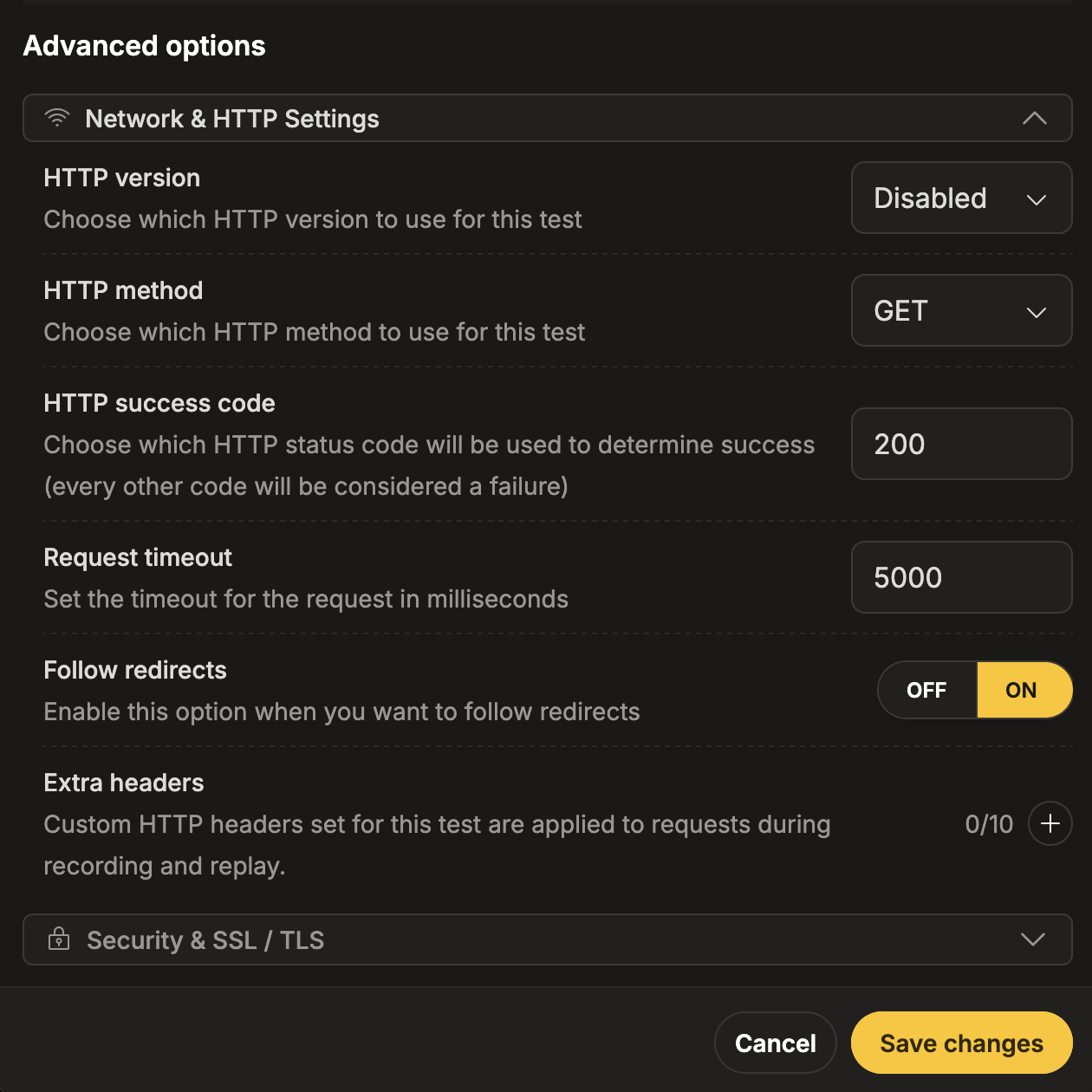
Expand the Network & HTTP Settings subsection.
-
Configure any of the following fields:
- HTTP method
- Request timeout
- HTTP success code
- HTTP version
- Follow redirects
-
Navigate to Workspace using the left sidebar menu.
-
Locate the test you want to modify.
-
Open the test settings using one of the following methods:
- On the overview page, click the pencil icon next to the Options section.
- On any page, click the three-dot menu and select Edit properties.
-
Scroll down to the Advanced options section.
-
Expand the Network & HTTP Settings subsection.
-
Update any of the following fields:
- HTTP method
- Request timeout
- HTTP success code
- HTTP version
- Follow redirects
Reporting
Section titled “Reporting”If the HTTP audit fails, the test is marked as failed.
The message explains which part of the HTTP check failed first.
Response status did not match expected value
- Message format: Server returned status code ACTUAL, expected EXPECTED
- Meaning: The server responded, but not with the status code you configured in HTTP success code.
- Typical causes:
- endpoint behavior changed (
200changed to301,401,500, etc.) - redirects are disabled and the server returned
301/302 - wrong expected code configured for that endpoint
- endpoint behavior changed (
URL validation failed before request
- Message format: Invalid URL: missing host
- Meaning: The configured URL is incomplete or malformed.
HTTP version setting is invalid
- Message format: Invalid headless_http_version: VALUE
- Meaning: The selected HTTP version is not one of the supported options.
Connection timeout
- Message format: Failed to connect within TIMEOUT_MS ms
- Meaning: A TCP/TLS connection to the target server could not be established in time.
- Typical causes:
- server is down or unreachable
- DNS/network/firewall problems
- timeout value is too low for current network conditions
Read timeout (server too slow to respond)
- Message format: Server did not respond within TIMEOUT_MS ms
- Meaning: Connection succeeded, but the response was not received in time.
- Typical causes:
- slow backend processing
- temporary overload
- timeout value is too strict for that endpoint
HTTP client/runtime errors
- Message format:
- Server returned HTTPError: code=CODE, reason=REASON
- Failed to reach server: reason=REASON
- Meaning: The request failed due to lower-level HTTP/network errors (for example protocol, transport, or retry-layer failures).