Session Player Overview
Why It Matters
Section titled “Why It Matters”Most monitoring tools tell you that something failed. The Session Player shows you how it failed.
With Website Scenario tests, you do not need to rely only on status codes, logs, or a generic Error state. You can inspect the browser view from the actual run and see what the user would have seen on screen.
This helps you quickly understand whether the issue was caused by:
- a broken user flow,
- a missing or shifted UI element,
- an unexpected redirect or popup,
- incorrect content on the page,
- or a visual regression that still returned a technically valid response.
Key Features
Section titled “Key Features”The Session Player includes the following features:
- Session Playback: Visual reproduction of the recorded user session using application screenshots rendered on a canvas.
- Session Comparison: Capabilities to compare the current session against other sessions (e.g., origin vs. error) to identify differences.
- User Event Simulation: Visual reconstruction of user interactions, including mouse clicks and other input events.
- Event Navigation: Chronological navigation through recorded events via the Session Timeline to inspect specific application states.
- Combine Screens: Allows merging the current session when in an error state, effectively marking the new version as valid. This is available only in pixel comparison. See Combine Screens.
Error Handling & Comparison
Section titled “Error Handling & Comparison”When a session ends with an error status, the player facilitates efficient debugging. The failed session can be compared against the original baseline recording to visually identify what changed on the website, not just that the run failed.
Two comparison modes are available:
- Side-by-Side Compare: Displays both sessions adjacent to each other.
- Parallel Compare: Overlays both sessions for precise visual alignment.
Accessing the Player
Section titled “Accessing the Player”The Session Player can be accessed from multiple locations within the application:
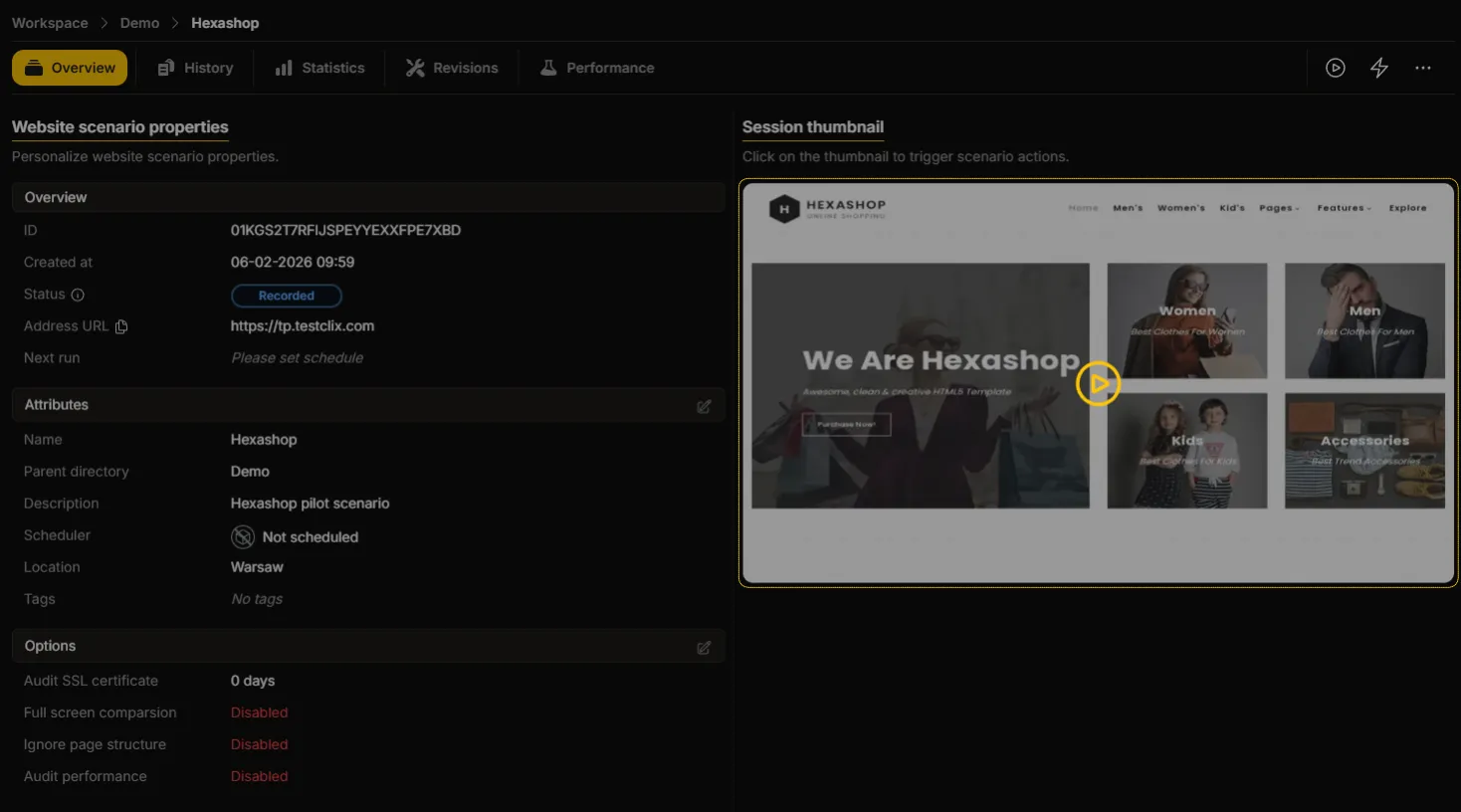
By clicking on the screenshot thumbnail in the scenario details view (only for Scenario tests).
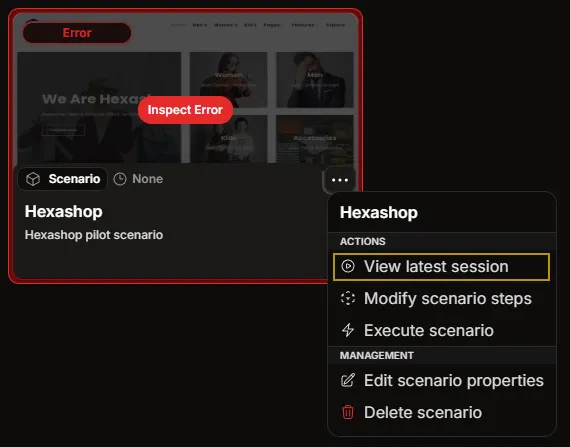
By selecting the player option from the dropdown menu assigned to a Scenario test.