

Manage Secrets
Introduction
Section titled “Introduction”This guide covers everything you can do with a stored secret from project settings: adding one, renaming it, replacing its value, and deleting it.
All of these actions require the Editor role or higher. For a Viewer, the controls are shown but locked. See Secrets.
Opening the Secrets Tab
Section titled “Opening the Secrets Tab”-
Open Settings from the left sidebar menu.
-
Go to the Secrets tab.
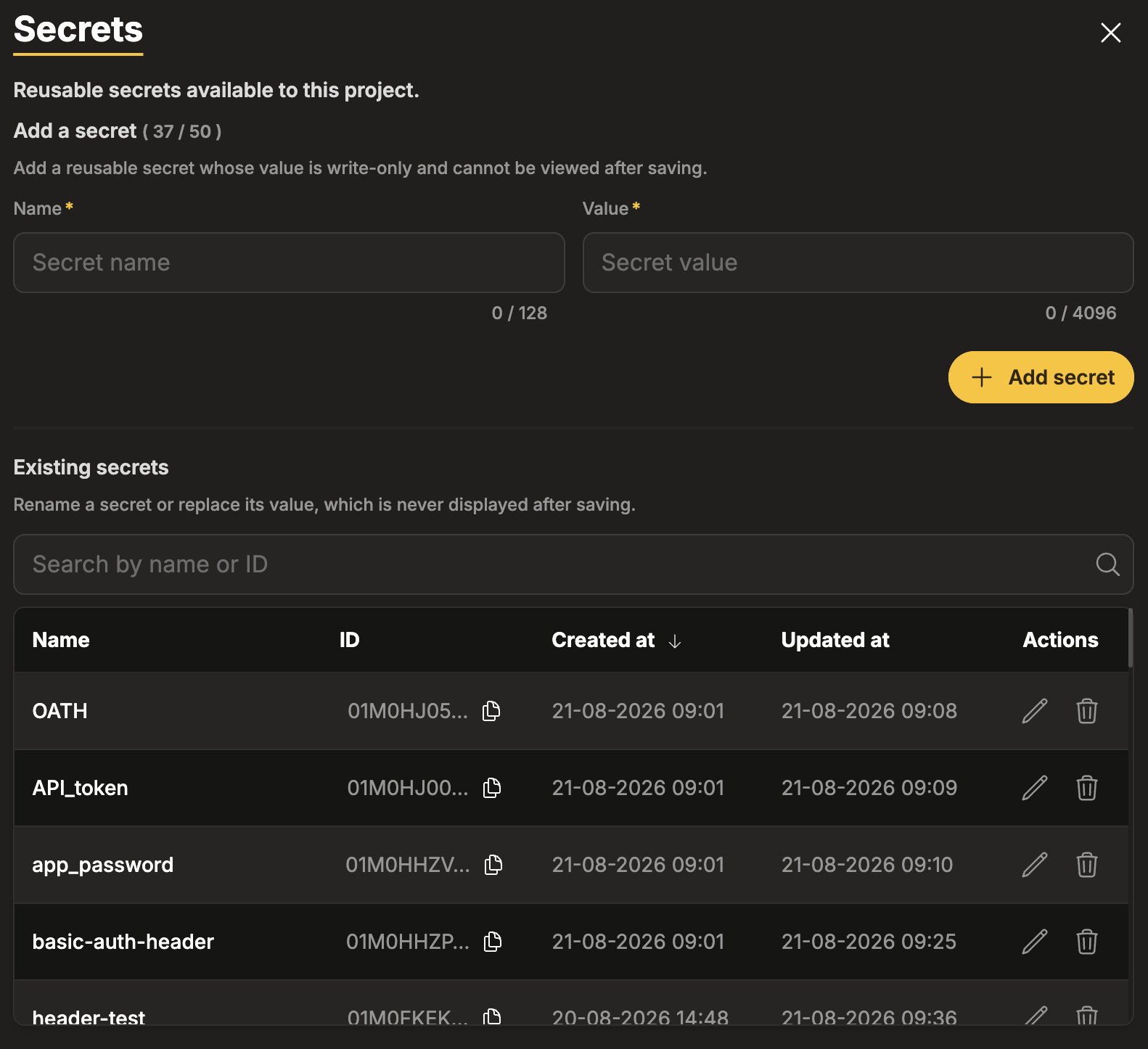
The tab is headed Secrets, with the subtitle “Reusable secrets available to this project.” It has two parts:
- Add a secret - the form for creating a new secret. The heading carries the counter, for example Add a secret ( 24 / 50 ), so you can see how much room is left.
- Existing secrets - the list of secrets already stored, with a search box, sortable columns, and an Actions column. See Find a Secret in the List.
Add a Secret
Section titled “Add a Secret”-
On the Secrets tab, go to the Add a secret section.
-
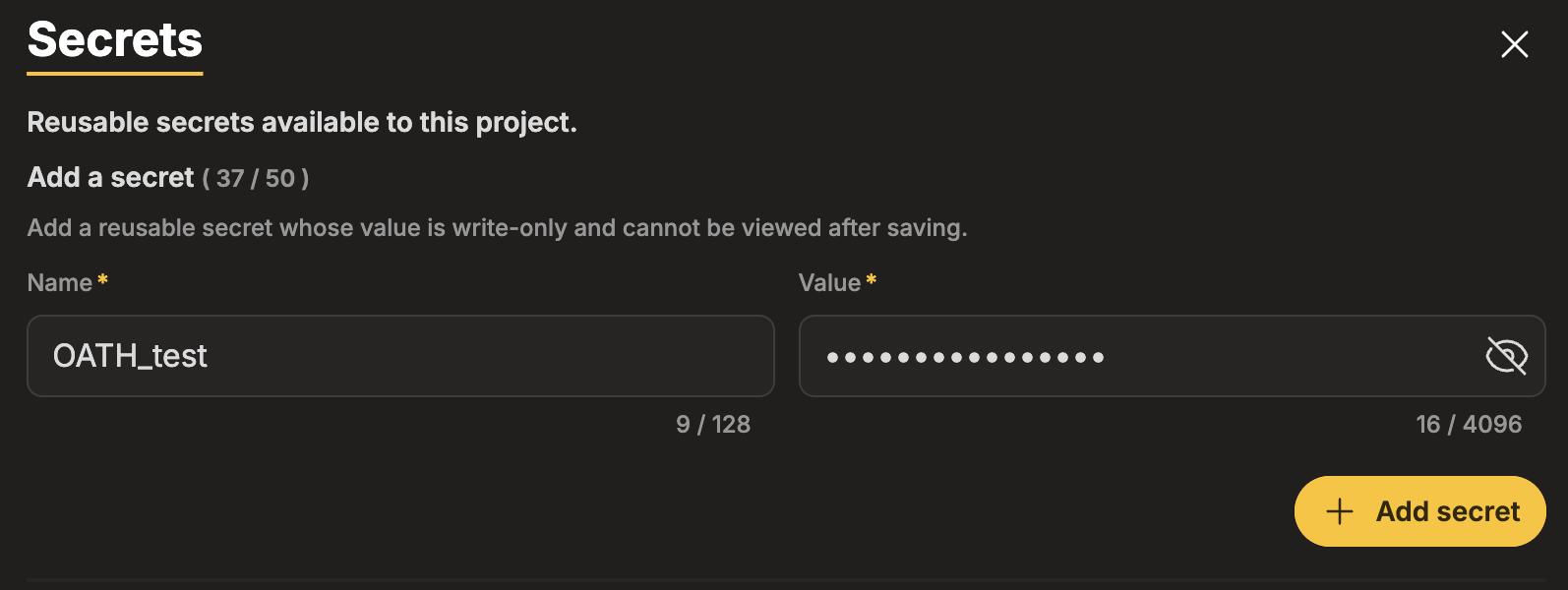
In Name, enter a name (up to 128 characters) - the field is marked required and shows the placeholder “Secret name”. Use something you will recognise in a dropdown later, for example the system the value belongs to.
-
In Value, enter the value (between 1 and 4096 characters) - placeholder “Secret value”.
Use the eye toggle next to the field to show or hide what you are typing, so you can check a long value before saving it.
-
Click Add secret.
Both fields show a live character count beneath them (0 / 128 for the name and 0 / 4096
for the value), so you can see when you are approaching a limit.
The secret appears in the list and can be referenced immediately from extra headers (Website Scenario, Website Availability, Website Vitals) and from the recorder.
Find a Secret in the List
Section titled “Find a Secret in the List”Once a project has a few dozen secrets, use the search box and column sorting to find the one you want.
Search
Section titled “Search”The list has a search box with the placeholder “Search by name or ID”. It matches both the secret’s name and its ID, which helps when several secrets have similar names.
The Name, ID, Created at and Updated at columns are all sortable - click a column heading to sort by it. By default the list is sorted newest first, so the secrets you added most recently are at the top.
Copy a Secret’s ID
Section titled “Copy a Secret’s ID”The ID column shows a shortened version of each secret’s id, with a copy-to-clipboard control next to it. Use it when you need to refer to a specific secret unambiguously - for example when two secrets have similar names, or when raising a support request.
Edit an Existing Secret
Section titled “Edit an Existing Secret”Renaming a secret and replacing its value are two variants of the same flow. Both start by clicking the pencil icon in the Actions column of the Existing secrets list.
The Value field is always empty when you open an existing secret, because the stored value cannot be displayed. This is what decides which of the two you are doing:
- Leave the field blank - the current value is kept, so you can rename safely.
- Type a new value - it replaces the current one.
Renaming changes only the label you pick from dropdowns. The stored value is untouched, and tests that already reference the secret keep working.
-
In the Existing secrets list, click the pencil icon in the Actions column of the secret you want to change.
-
Edit the Name field (up to 128 characters).
-
Leave the Value field blank so the current value is kept.
-
Save.
Tests reference the secret itself rather than its name, so nothing needs updating afterwards.
Because a stored value cannot be read back, you do not edit it - you overwrite it with a new one. This is how you rotate a token or update a password.
-
In the Existing secrets list, click the pencil icon in the Actions column of the secret you want to change.
-
Enter the new value in the Value field (between 1 and 4096 characters).
Use the eye toggle to check the value before saving.
-
Save.
Every test and recorded step that references this secret picks up the new value on its next run. You do not need to edit the tests themselves.
Delete a Secret
Section titled “Delete a Secret”-
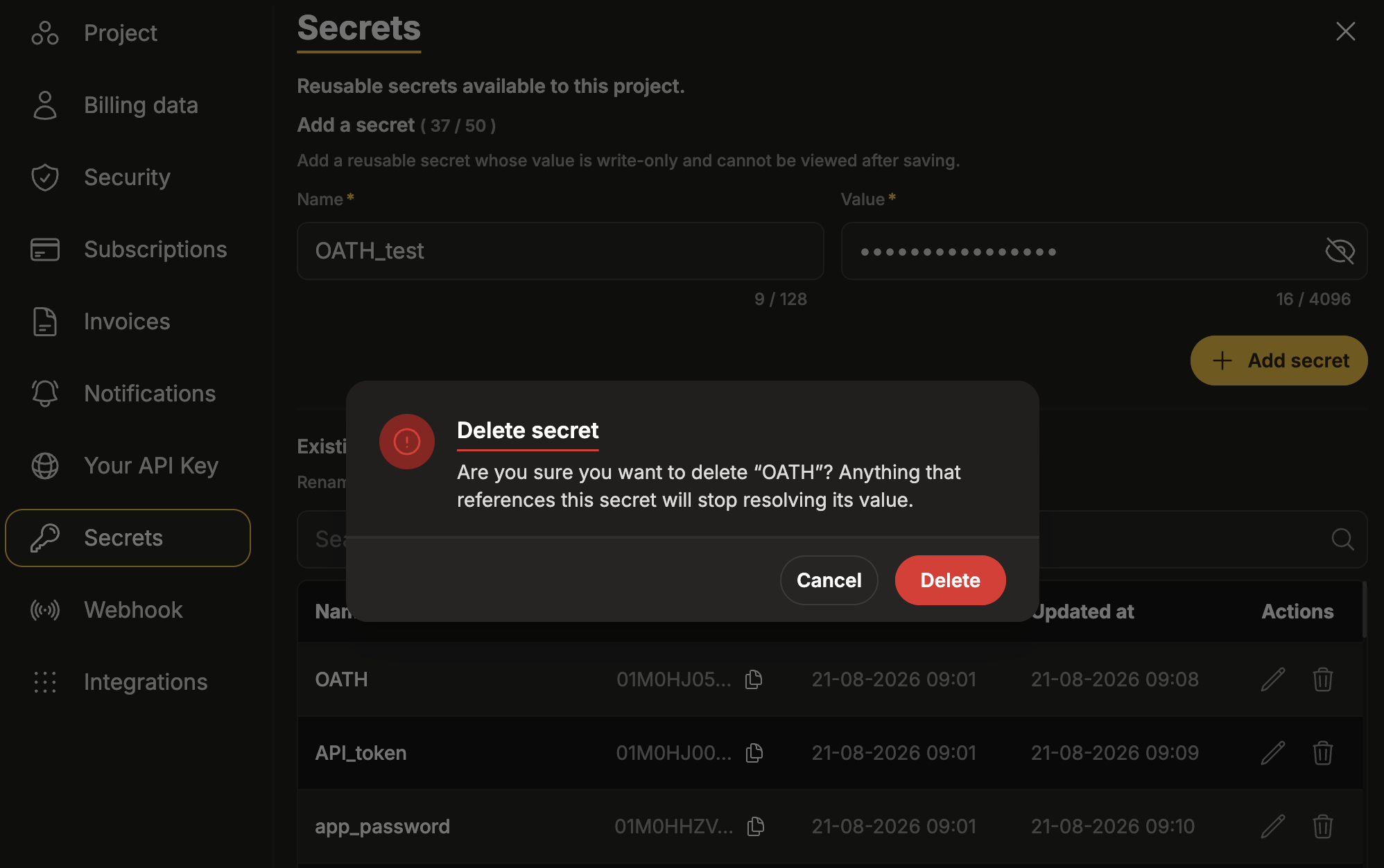
In the Existing secrets list, click the trash icon in the Actions column of the secret you want to remove.
-
A Delete secret dialog asks you to confirm:
“Are you sure you want to delete “<secret name>”? Anything that references this secret will stop resolving its value.”
-
Click Delete to remove the secret, or Cancel to keep it.
The dialog warns you in general terms, but it does not list which tests or recorded steps use the secret. Check that yourself before confirming - see the caution below.
When the Project Is Full
Section titled “When the Project Is Full”A project can store 50 secrets. When the counter reaches 50 / 50, you cannot add another
one and the following message is shown:
“Maximum of 50 secrets reached. Delete a secret to add a new one.”
To continue:
- Delete a secret you no longer need - check first that no test references it, or you will create broken references.
- Or replace the value of an existing secret instead of creating a new one, where that fits your setup.
Related
Section titled “Related”I renamed a secret. Do I need to update my tests?
No.
Tests reference the secret itself, not its name. After a rename they keep working and simply show the new name.
How do I change a value if I can’t see the old one?
You do not need the old value. Open the secret, type the new value, and save - see Edit an Existing Secret.
I opened a secret and the Value field is empty. Is the value gone?
No.
The field is always empty because stored values are never displayed. Leave it blank and the current value is kept.
Why are the add and delete buttons locked?
Managing secrets requires the Editor role or higher. Ask your project Owner or Admin - see Roles & Permissions.