
Audit SSL
Introduction
Section titled “Introduction”One of the most problematic aspects of website maintenance is managing SSL certificates. Because certificates usually have a long validity period, they are easy to forget about and often expire unnoticed. While some teams configure automatic renewal mechanisms, there is no absolute guarantee that these mechanisms will always work as expected.
For this reason, SSL certificate monitoring is one of the most common and important website health checks.
The Website Availability gives you multiple tools for inspecting SSL details.
How It Works
Section titled “How It Works”SSL Expiry Threshold
Section titled “SSL Expiry Threshold”You can configure a threshold that defines when the test starts failing. The available options are:
- 0 days
- 7 days
- 14 days
- 21 days
The selected value defines the minimum number of days remaining before the certificate expires.
When the value is greater than 0 days, the test is marked as Error if the remaining validity period is lower than the configured threshold.
When the value is set to 0 days, certificate expiration is not monitored. The test is marked as Error only when the certificate expires and becomes invalid.
TLS version (minimum)
Section titled “TLS version (minimum)”You can configure the minimum accepted TLS version. This option allows you to ensure that your website is using the expected security level. The available options are TLS 1.0, TLS 1.1, TLS 1.2, and TLS 1.3.
When a minimum version is set, the test connects to your website and checks the TLS version negotiated during the handshake. If the server negotiates a version lower than the configured minimum, the test fails. For example, if the minimum is set to TLS 1.2 and the server negotiates TLS 1.1, the test will report an error.
Require full chain (TLS)
Section titled “Require full chain (TLS)”This option enforces that the server presents a complete certificate chain, including intermediate certificates, to the browser. This is important because some servers are misconfigured and only send the leaf certificate without the intermediates. While most modern browsers can work around this by fetching missing intermediates on their own, not all clients support this behavior. API consumers, mobile apps, and older systems may fail to establish a connection if intermediates are missing. Enabling this check helps you catch such misconfigurations before they affect your users.
Allow wildcards (TLS)
Section titled “Allow wildcards (TLS)”When disabled, this option enforces that the certificate does not contain wildcard entries
(e.g., *.example.com) in the Subject Alternative Names (SAN) or Common Name (CN) fields.
This is important because wildcard certificates, while convenient, carry a higher security risk.
If a wildcard certificate is compromised, all subdomains covered by that certificate are affected.
Some security policies and compliance standards require the use of individual certificates per
domain to limit the blast radius in case of a key compromise. Disabling wildcards helps you
enforce this policy automatically.
Configuration
Section titled “Configuration”-
Navigate to Workspace using the left sidebar menu.
-
Click the Create button on the right side.
-
Select Website Availability.
-
Scroll down to the Advanced options section.
-
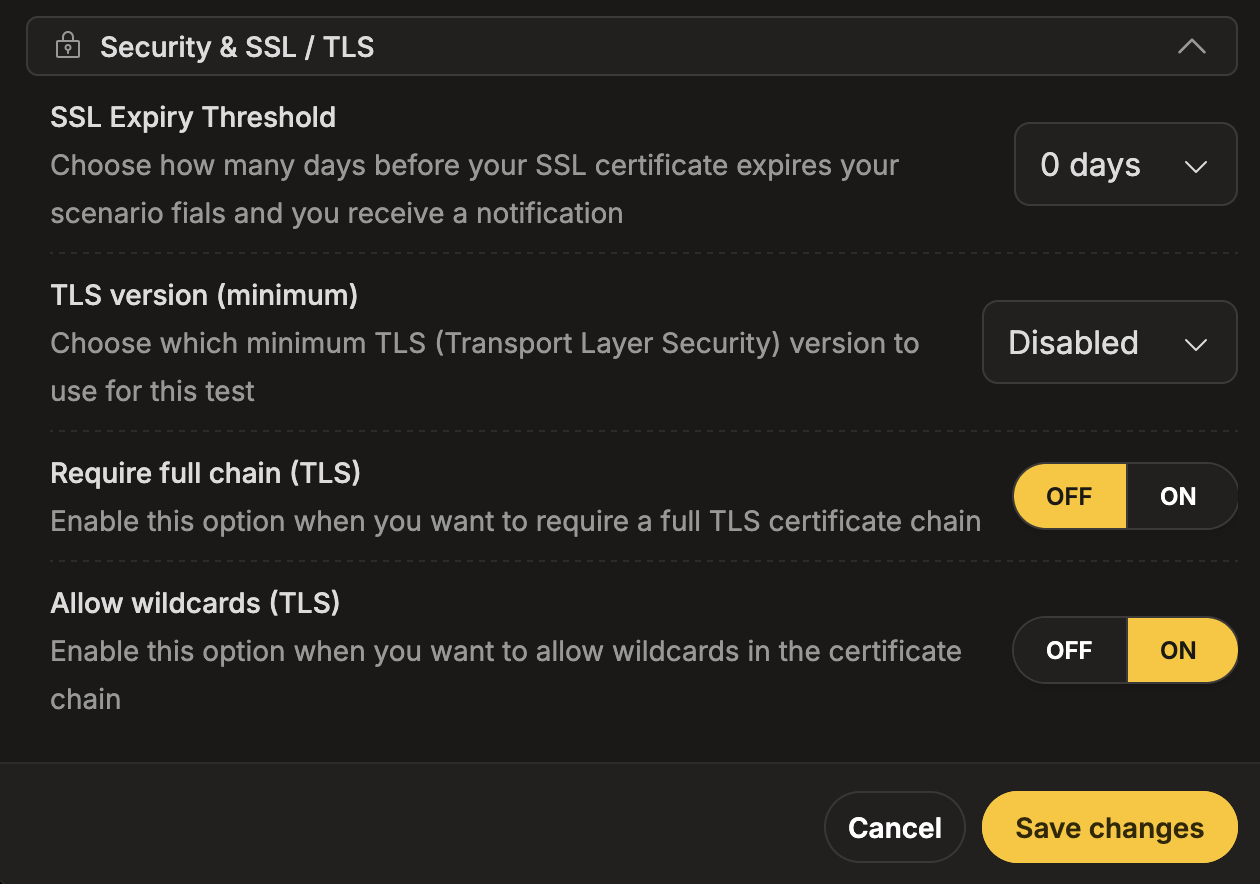
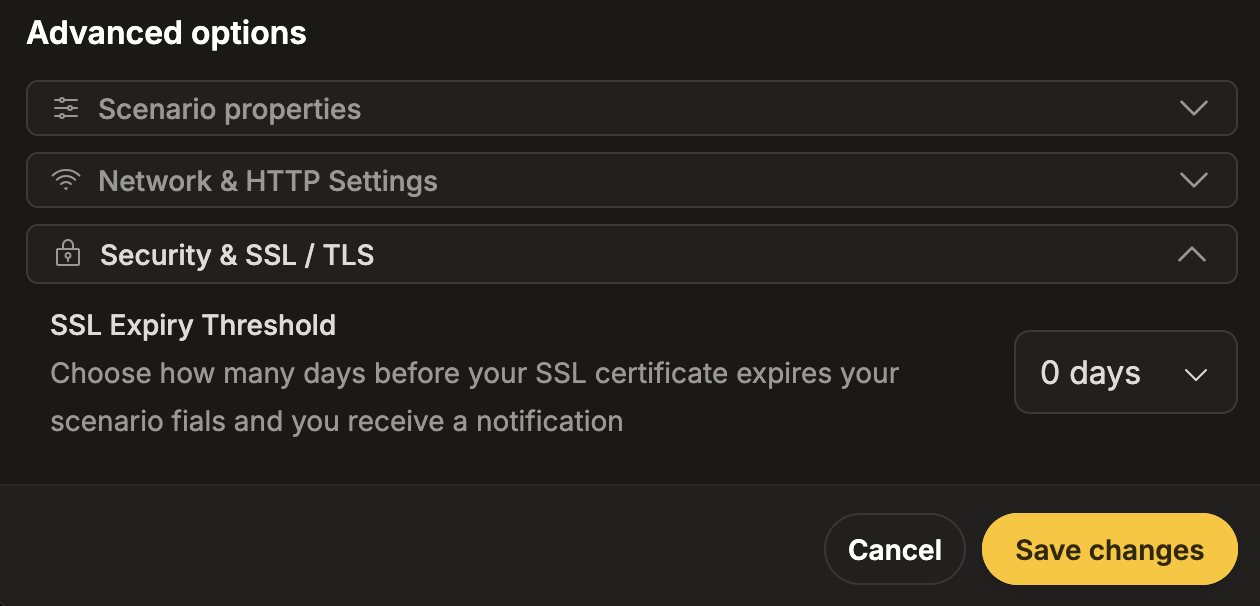
Expand the Security & SSL / TLS subsection.
-
Configure the desired SSL/TLS audit options:
- SSL Expiry Threshold — choose the certificate expiration threshold.
- TLS version (minimum) — choose the minimum accepted TLS version.
- Require full chain (TLS) — enable to require a full TLS certificate chain.
- Allow wildcards (TLS) — enable to allow wildcards in the certificate chain.
-
Navigate to Workspace using the left sidebar menu.
-
Locate the test you want to modify.
-
Open the test settings using one of the following methods:
- On the overview page, click the pencil icon next to the Options section.
- On any page, click the three-dot menu and select Edit properties.
-
Scroll down to the Advanced options section.
-
Expand the Security & SSL / TLS subsection.
-
Configure the desired SSL/TLS audit options:
- SSL Expiry Threshold — choose the certificate expiration threshold.
- TLS version (minimum) — choose the minimum accepted TLS version.
- Require full chain (TLS) — enable to require a full TLS certificate chain.
- Allow wildcards (TLS) — enable to allow wildcards in the certificate chain.
Reporting
Section titled “Reporting”When any enabled SSL/TLS audit check fails, the test is marked as Error.
The reported message depends on which check failed first:
Certificate expiration threshold
- Triggered when
SSL Expiry Thresholdis set to more than0days and the certificate validity period is below the configured threshold. - Message format: SSL certificate expires in under XX days!
Minimum TLS version
- Triggered when the server negotiates a TLS version lower than the configured minimum.
- Message format: TLS version NEGOTIATED negotiated, minimum required MIN_VERSION
Require full chain
- Triggered when the server does not provide a complete certificate chain.
- Message format examples:
- Incomplete certificate chain: missing intermediates
- Incomplete certificate chain: no certificate received
Allow wildcards = disabled
- Triggered when the certificate contains a wildcard entry in SAN or CN while wildcard certificates are disallowed.
- Message format: Wildcard certificate detected but wildcards are not allowed
Inspection runtime errors
- Returned when TLS/SSL inspection cannot complete due to a low-level error.
- Message format examples:
- TLS inspection failed: ERROR
- SSL inspection failed: ERROR