
Telegram Integration
Introduction
Section titled “Introduction”Integrating TestCLIX with Telegram allows you to receive test failure notifications directly in Telegram.
You can connect notifications to:
- A private chat with the TestCLIX bot
- A group chat where the TestCLIX bot has been added
This gives your team a simple way to keep test alerts visible in the place where you already communicate.
Official Bot
Section titled “Official Bot”To make sure you are connecting to the correct Telegram bot, always use one of the official references below:
Use this official bot link: TestCLIXBot
You can also verify the bot by its Telegram username: @TestCLIXBot.
Connecting to Telegram
Section titled “Connecting to Telegram”You can connect and manage Telegram notifications directly from the application Settings. Configuring them requires the Admin or Owner role in the current project - see Roles & Permissions.
The private chat option is best when notifications should be delivered directly to one Telegram account.
-
Open Settings from the left sidebar menu.
-
Select the Integrations tab.
-
If Telegram is not connected, a Connect to Telegram button is displayed. Click it to start the process.

-
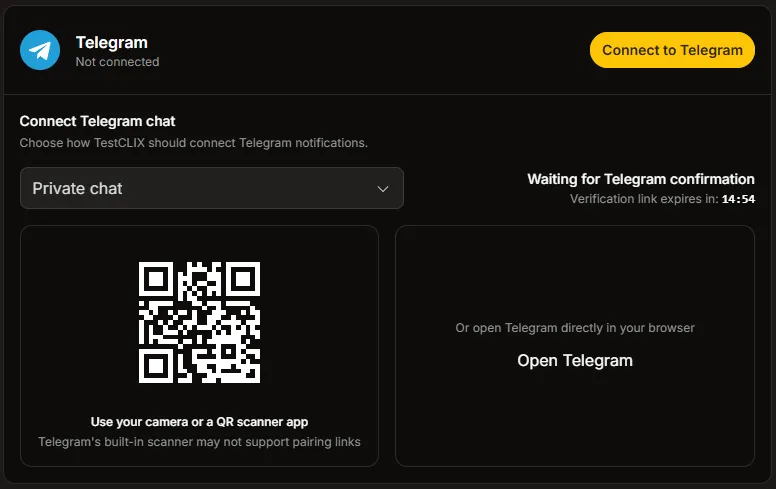
Choose Private chat and click Generate link.

-
Start the connection using one of these options:
- Click Open Telegram to open the bot directly.
- Scan the displayed QR code using your phone camera or any QR scanning app.
-
In Telegram, open the chat with the bot and click Start.
-
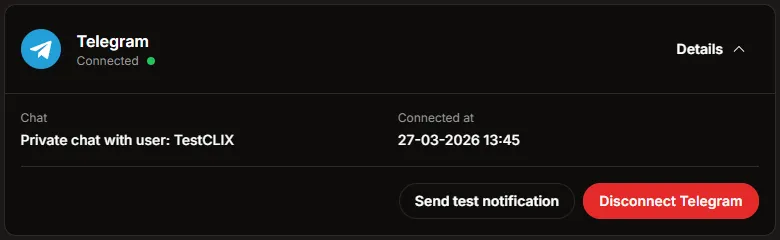
Return to TestCLIX and wait until the integration status changes to Connected.
The group chat option is useful when the whole team should see alerts in a shared Telegram conversation.
-
Open Settings from the left sidebar menu.
-
Select the Integrations tab.
-
If Telegram is not connected, a Connect to Telegram button is displayed. Click it to start the process.
-
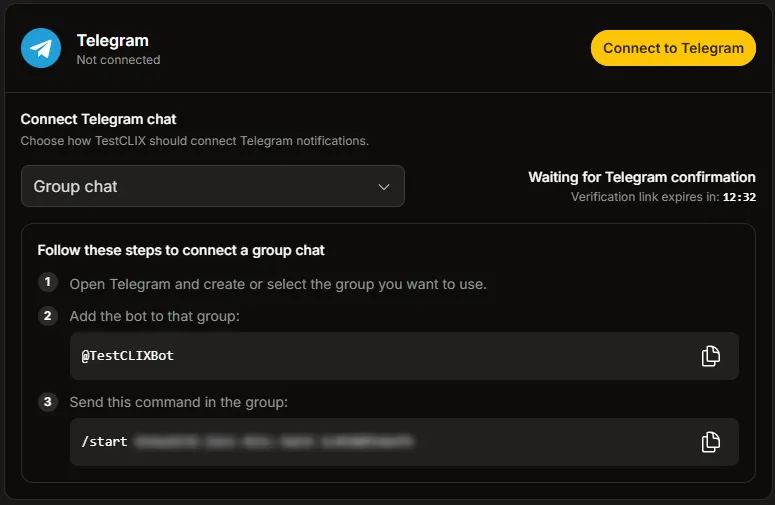
Choose Group chat and click Generate command.

-
Follow inner instructions to connect the bot to your Telegram group.
-
Add the TestCLIX Bot to your Telegram group.
-
Copy the command shown in the integration panel.
-
Send that command in the Telegram group to confirm the connection.
-
-
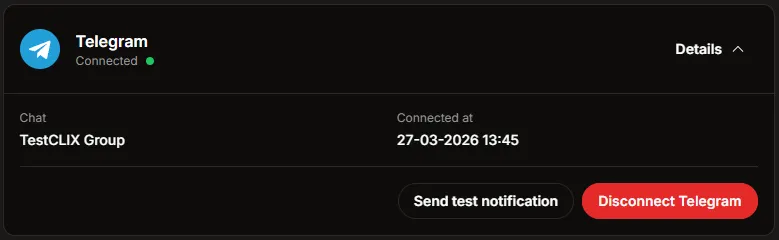
Return to TestCLIX and wait until the integration status changes to Connected.
Managing the Integration
Section titled “Managing the Integration”Once Telegram is connected, the integration panel shows the current chat details and available actions.
It can display:
- The name of the connected chat
- The date when the integration was connected
- The current connection status
Send a Test Notification
Section titled “Send a Test Notification”To confirm that everything is working correctly:
-
Open the connected Telegram integration details.
-
Click Send test notification.
-
Check the connected Telegram chat and confirm that the message has arrived.
Disconnect Telegram
Section titled “Disconnect Telegram”If Telegram notifications are no longer needed, the integration can be removed at any time.
-
Open the connected Telegram integration details.
-
Click Disconnect Telegram.
-
Confirm that the integration status returns to the disconnected state.